
Connecting AccuLynx CRM with InventoryHQ for Automated Job and Cost Sync
This process connects your AccuLynx CRM to your InventoryHQ account so that awarded jobs automatically appear in InventoryHQ, and completed job material costs are automatically pushed back into AccuLynx for centralized job costing.
Step by step
- 1
Understand What the Integration Will Do
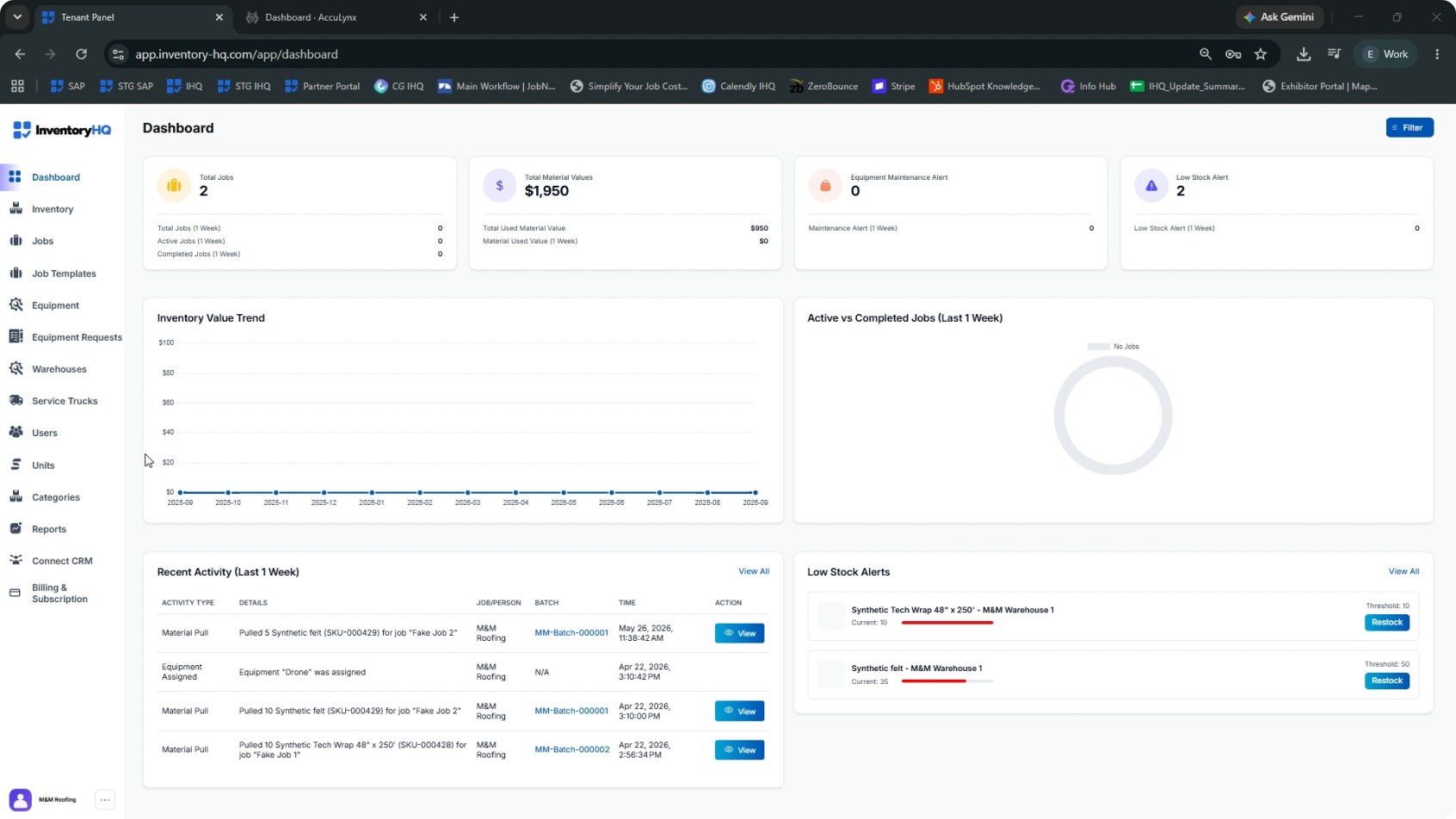
When this integration is configured correctly, two automations will run between AccuLynx and InventoryHQ:
- When a job in AccuLynx reaches your “awarded” (or equivalent) stage, it will automatically appear in InventoryHQ, eliminating double entry of jobs.
- When you finish a job in InventoryHQ, the material cost is sent back to the corresponding job in AccuLynx, so all job costing data is stored in one place.
- 2
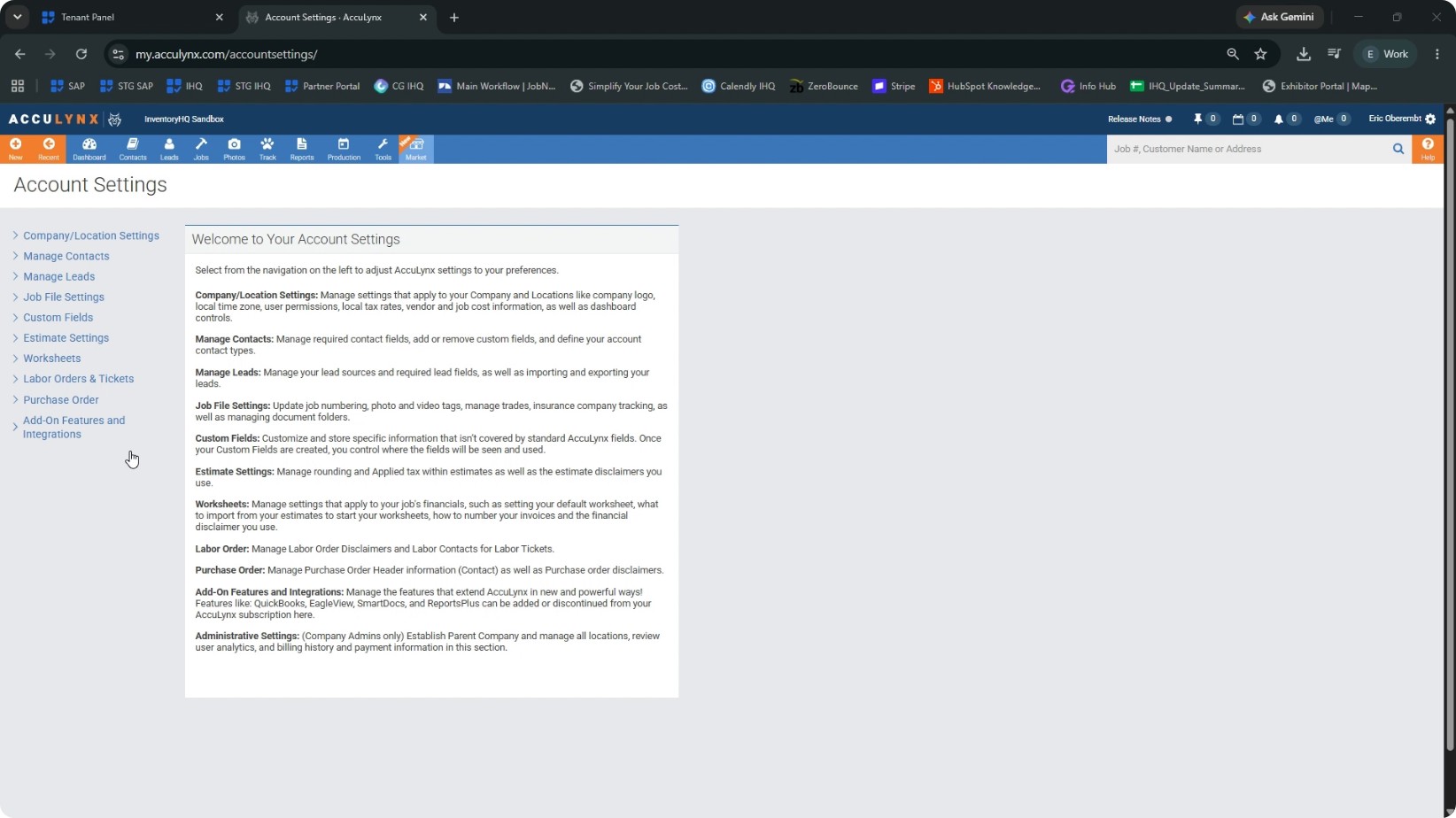
Open AccuLynx Account Settings and Prepare to Add a Custom Field
First, configure AccuLynx so InventoryHQ has a place to write the material cost data. Log in to your AccuLynx account. Go to Account Settings. In Account Settings, you will create a custom field that InventoryHQ can update.
This must be done before connecting to InventoryHQ so the field exists when InventoryHQ tries to send data.
- 3
Create the “warehouse material expense” Job Custom Field
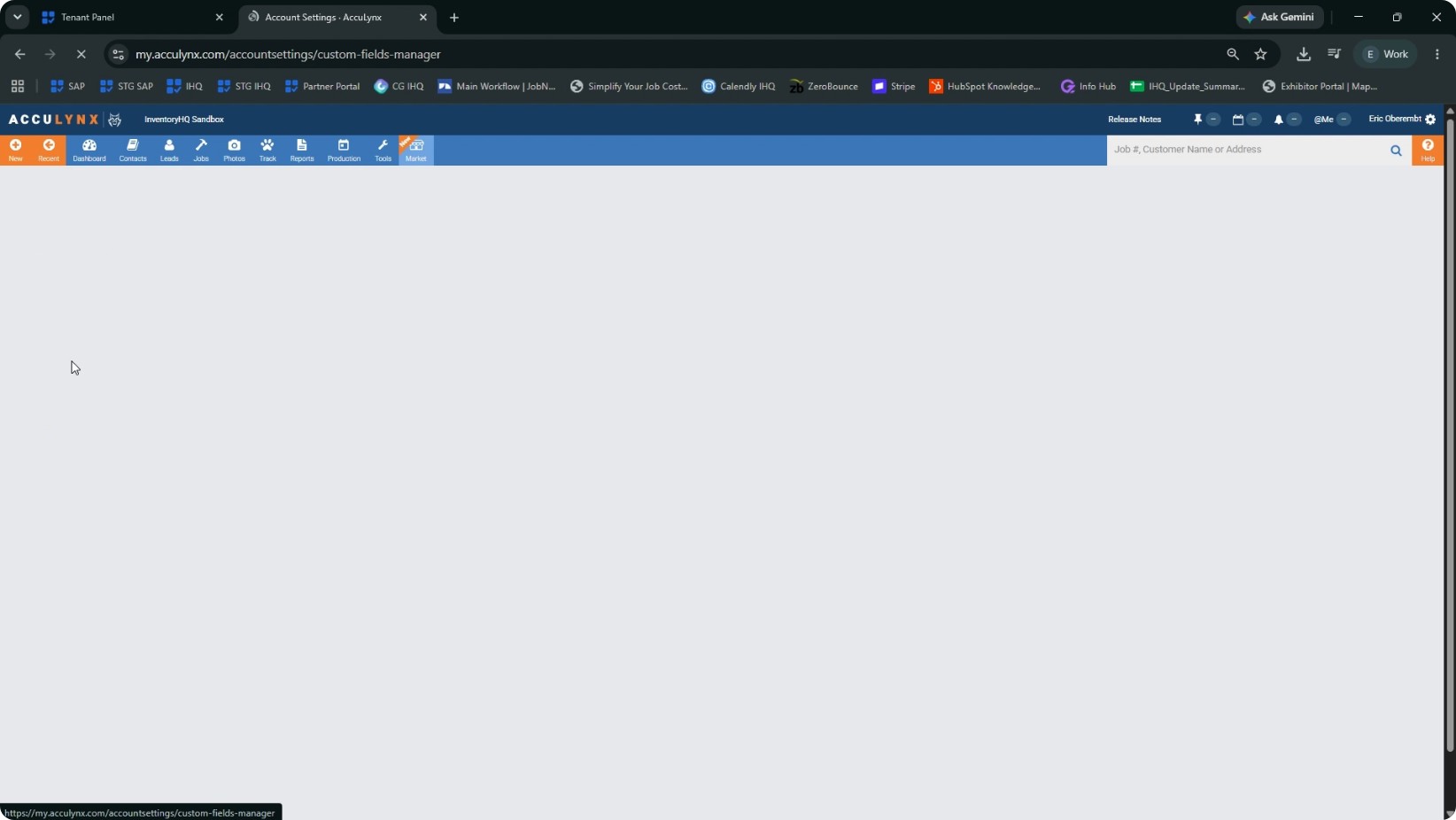
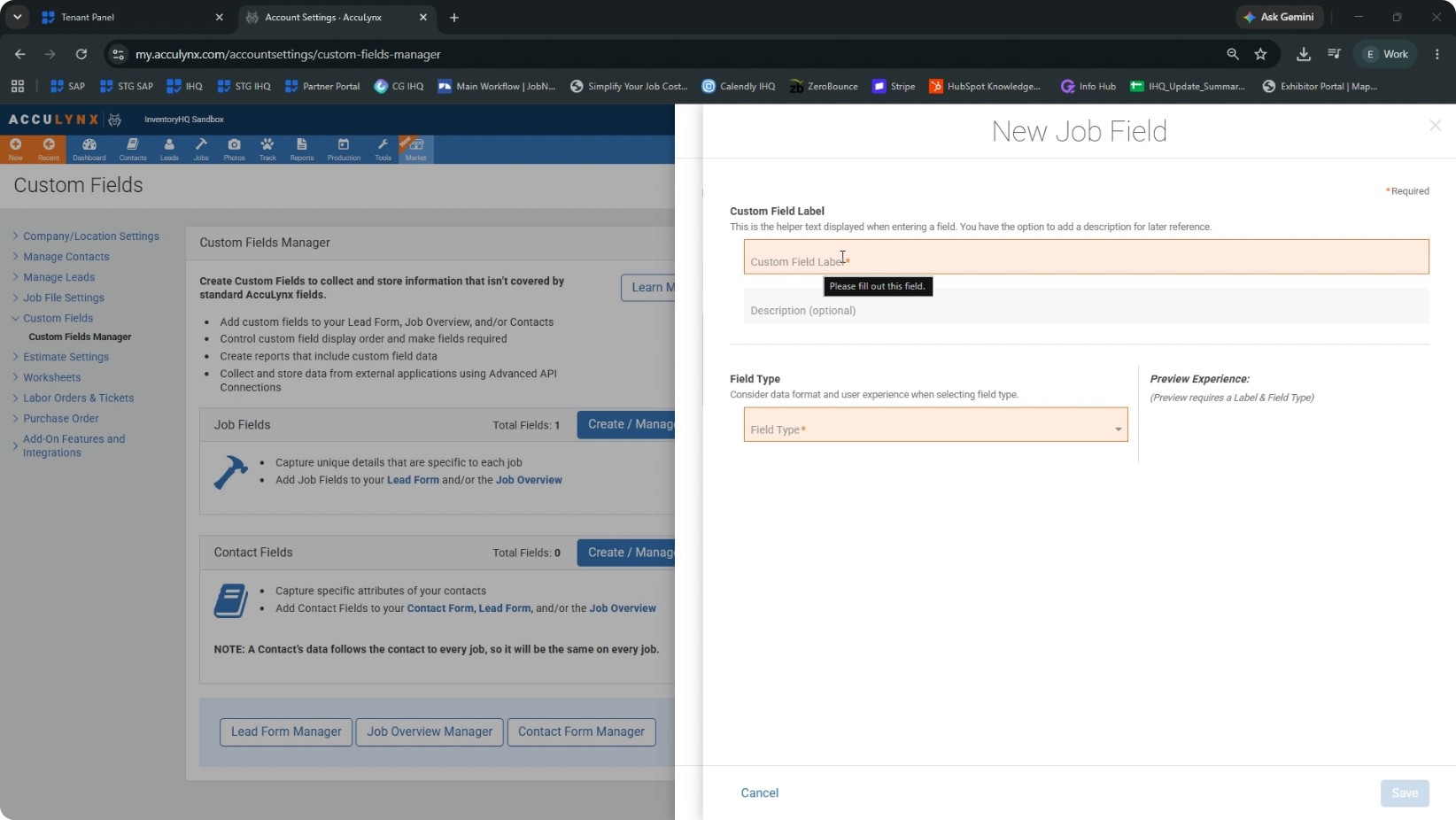
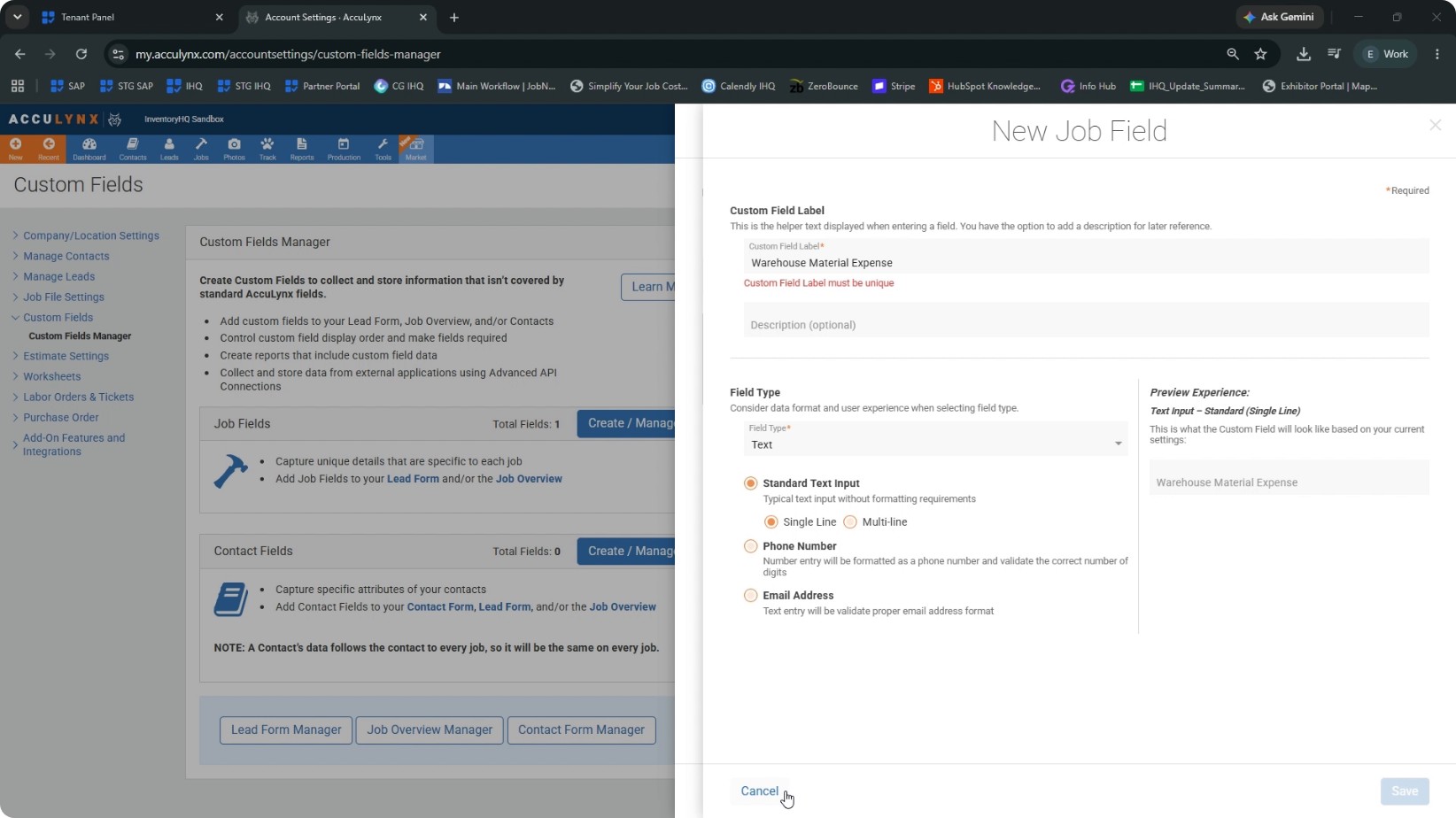
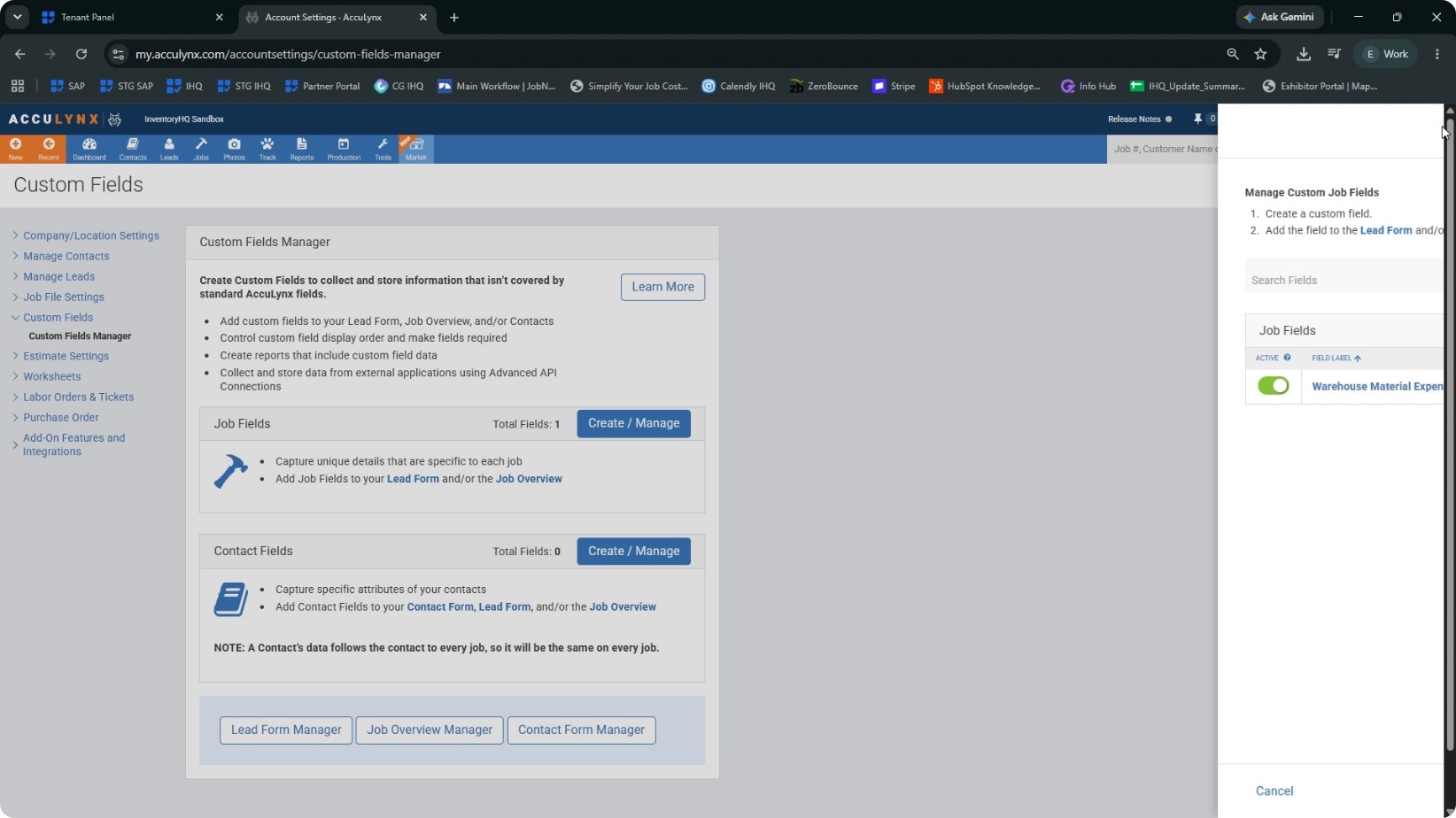
In Account Settings, navigate to Custom Fields and then Custom Fields Manager. Under Job Fields, click Create or Manage. Click New Job Field. In the Field Name, type exactly: warehouse material expense.
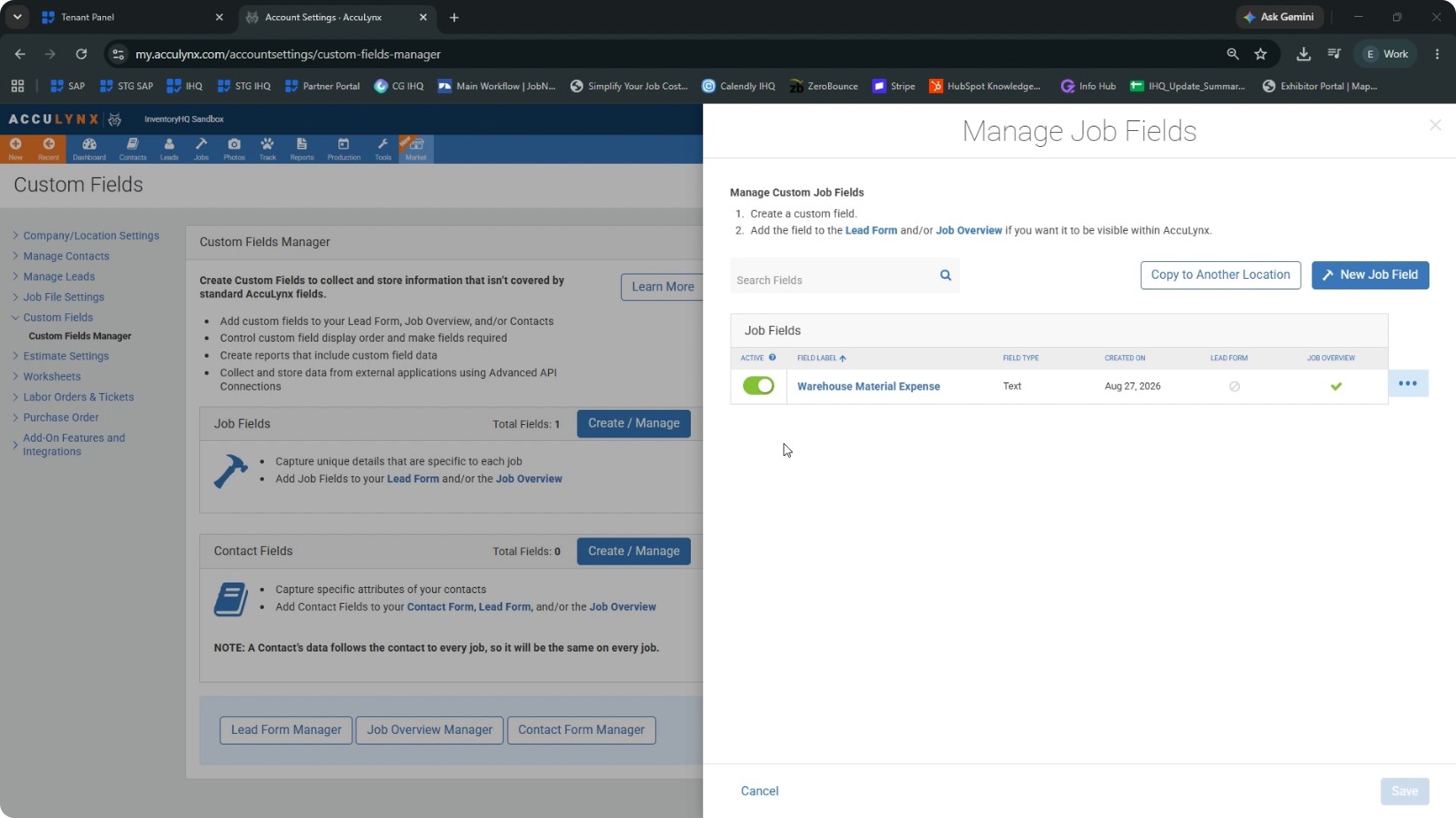
This must match exactly, including capitalization and no extra spaces. If the name does not match, InventoryHQ will not be able to find the field and the cost will never appear. For Field Type, select Text. Click Save. Confirm that the new job field now appears in your job fields list.
- 4
Make the Custom Field Visible on the Job Screen
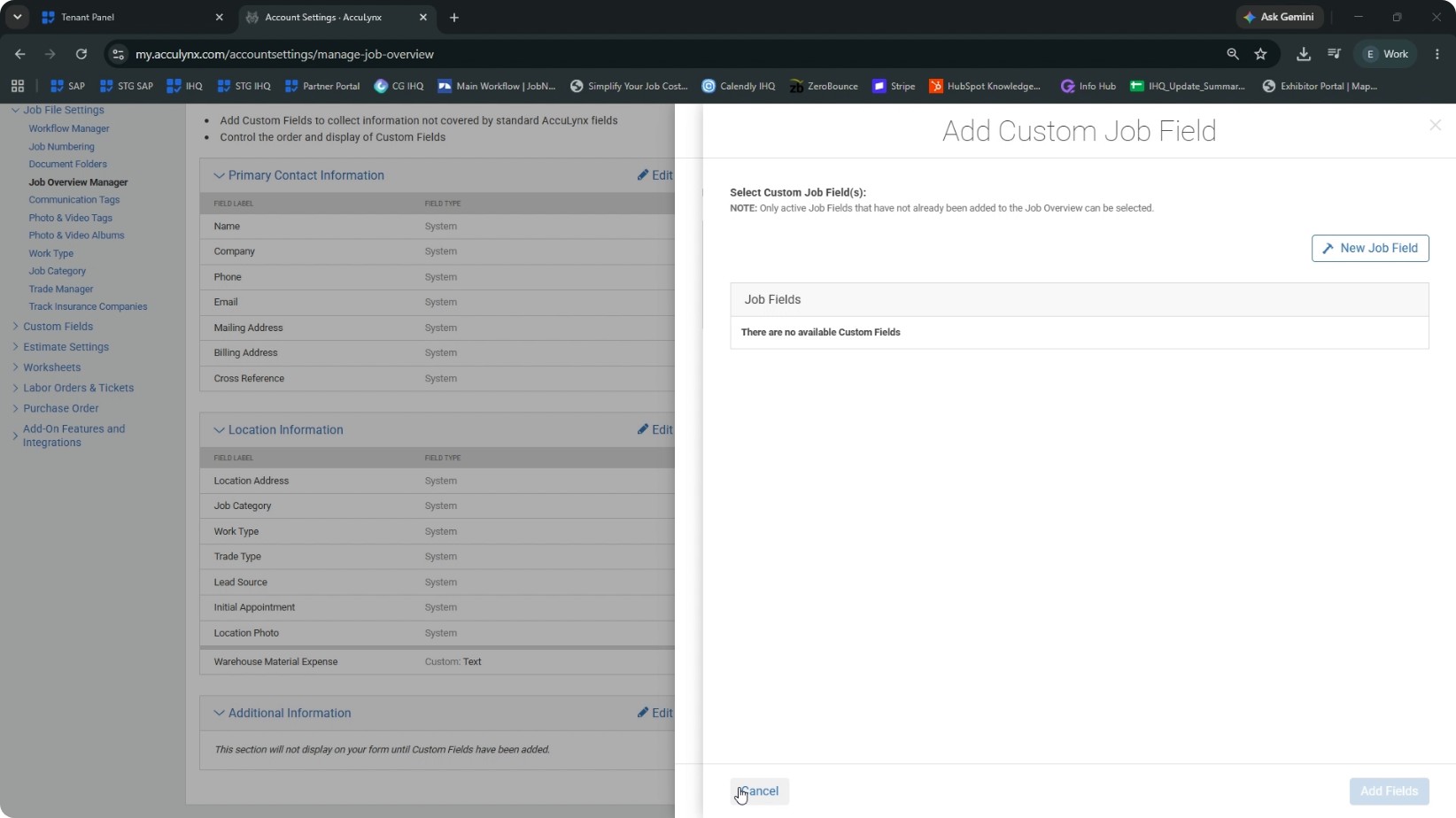
Creating the custom field alone does not display it on the job overview; you must also add it to the job layout. Close the custom field dialog. While still in Account Settings, go to Job File Settings and then Job Overview Manager. Scroll down to the Additional Information section and click Edit. Click Add Custom Job Field. Locate the warehouse material expense field you just created, check/select it to add it to the layout, and then click Save. Return to the Job Overview layout and go to Location Information (or the appropriate section where the field was added) and confirm that warehouse material expense is now visible. Note for future troubleshooting:
- If the warehouse material expense field ever disappears from your job screen, do not try to fix it by turning the field off and back on in Custom Fields. Turning it off removes it from Job Overview, and turning it back on does not automatically re-add it.
- Instead, re-add it using Job Overview Manager the same way you just did.
At this point, the AccuLynx side of the setup is complete.
- 5
Generate an API Key in AccuLynx
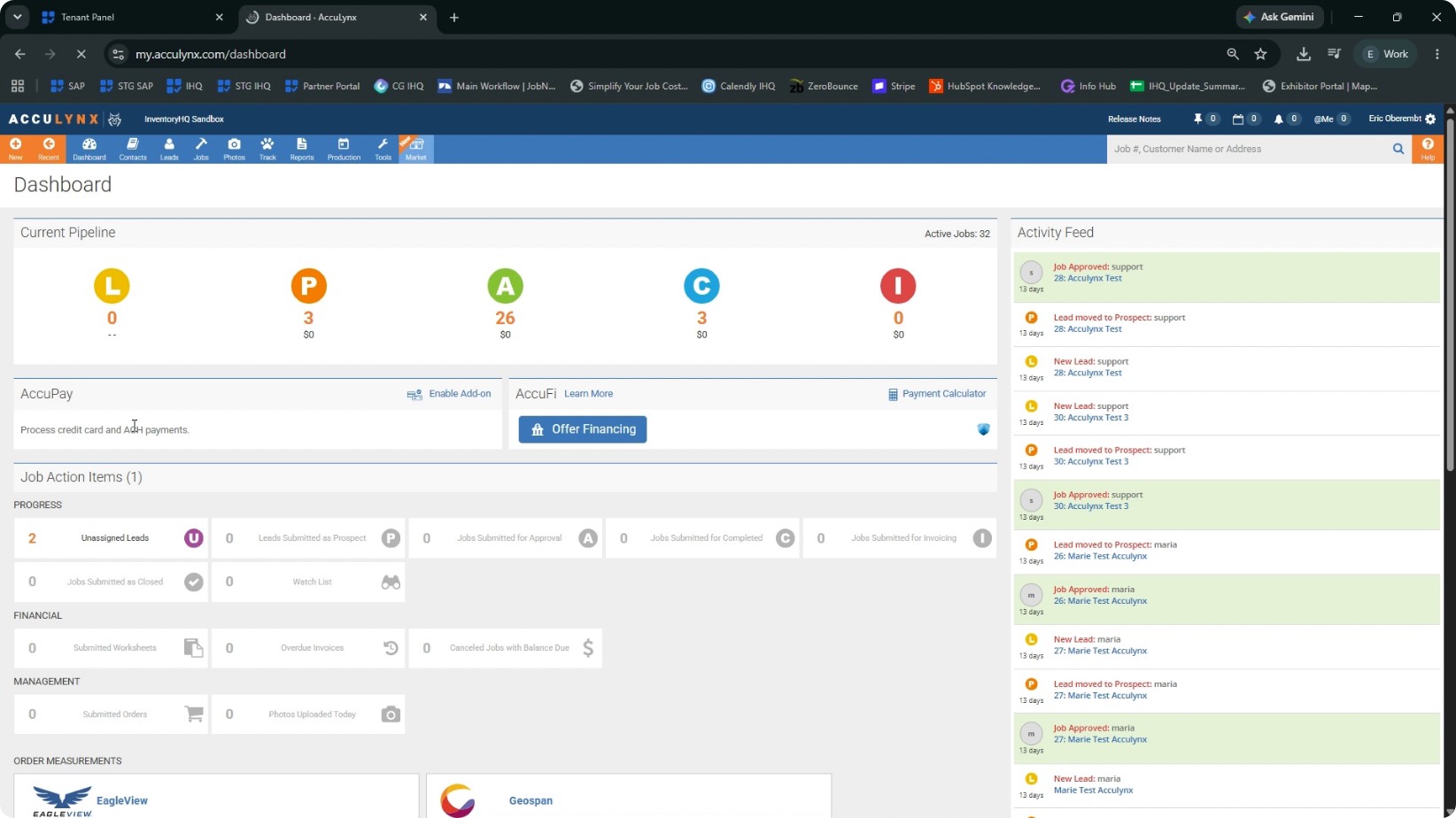
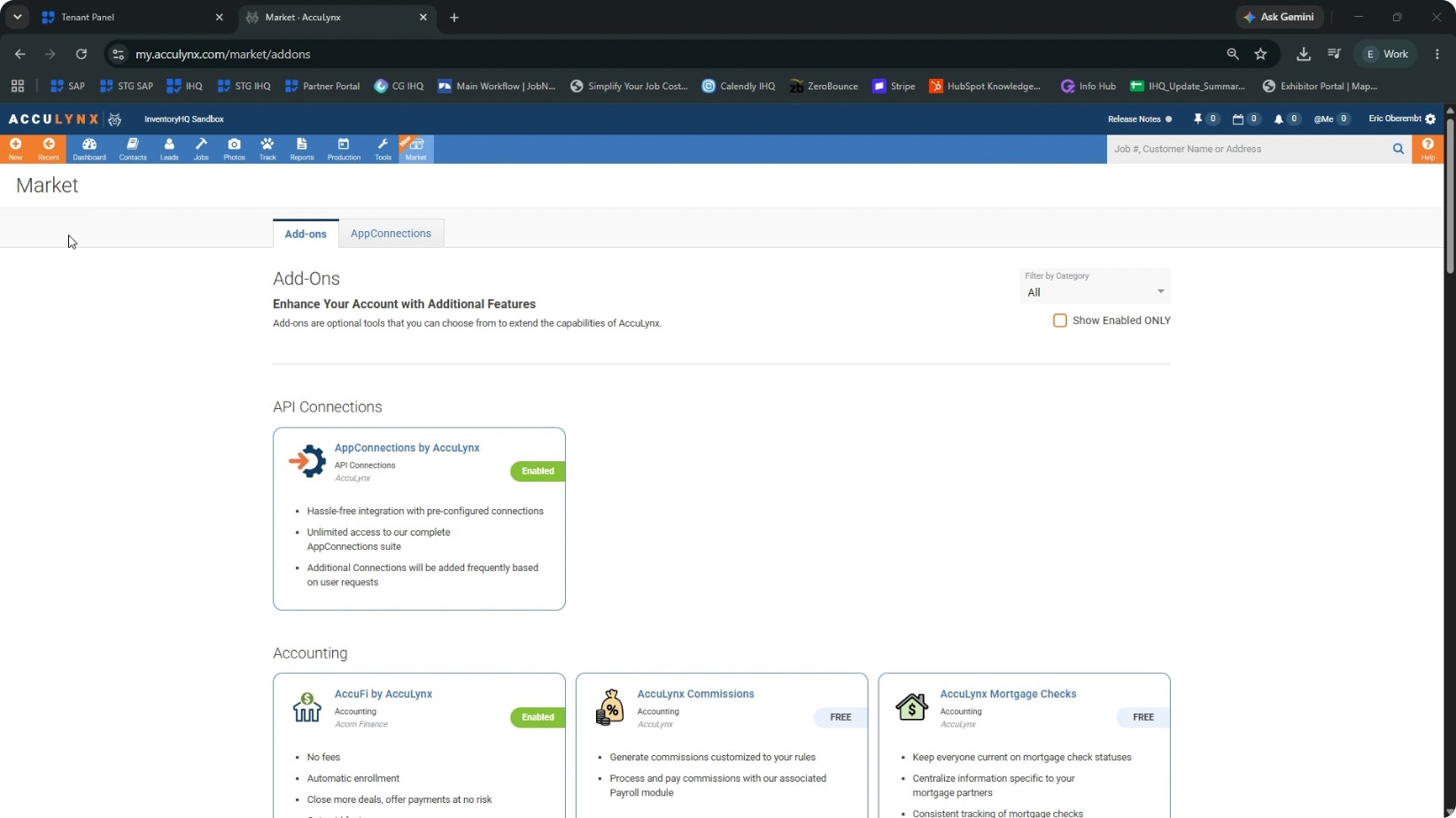
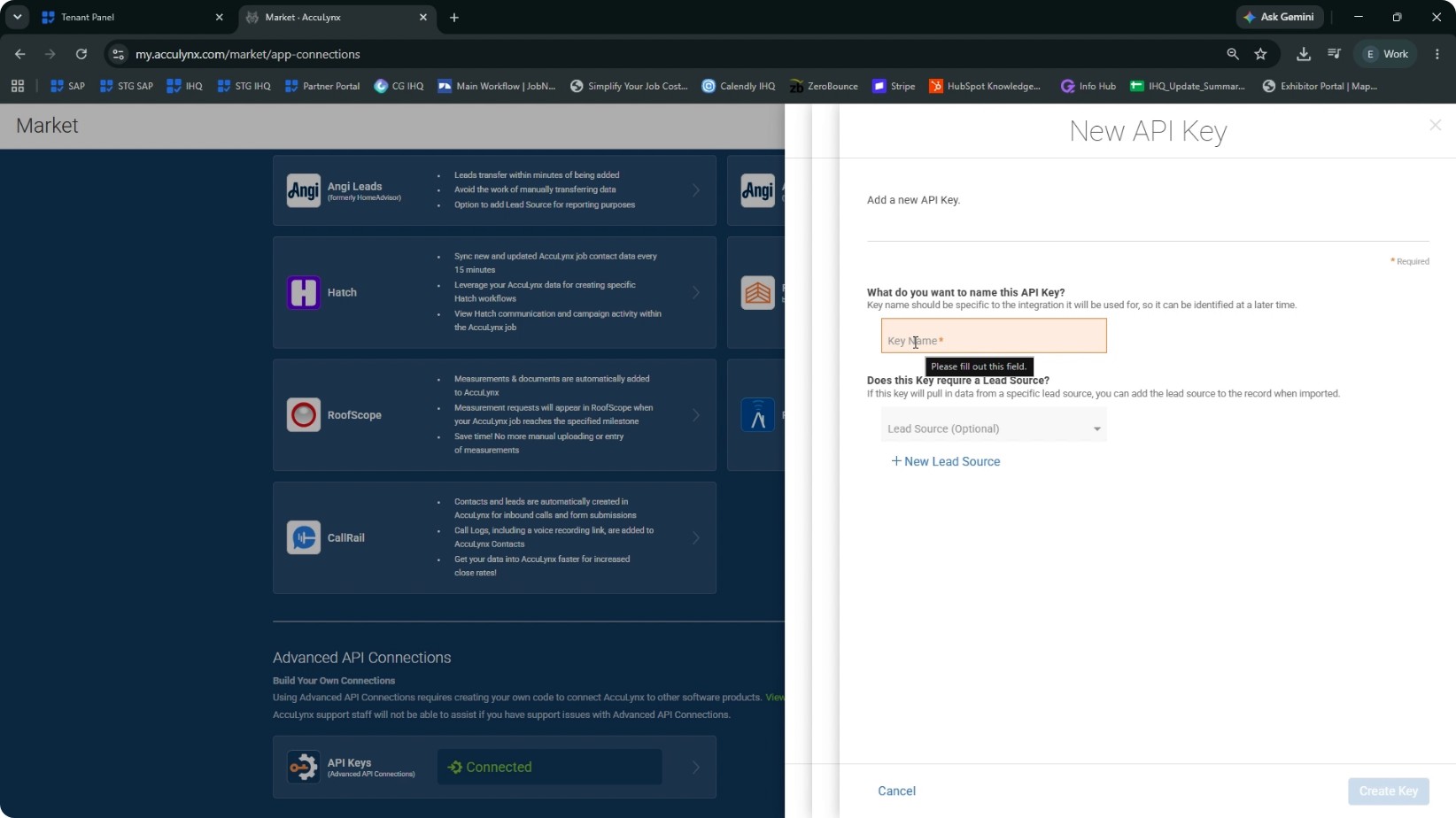
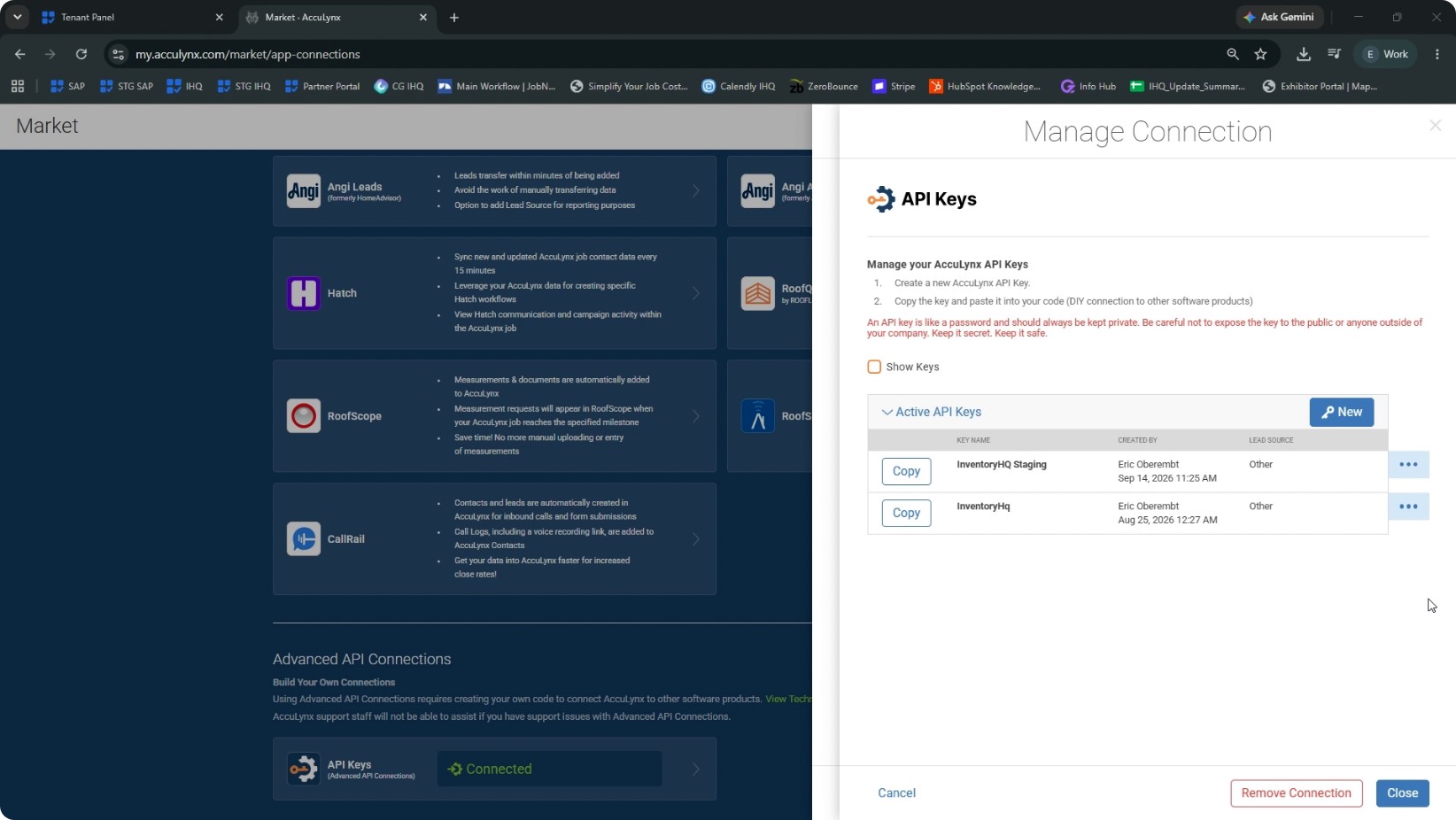
Now you will create an API key that allows InventoryHQ to securely connect to your AccuLynx data. Return to the AccuLynx Dashboard. Go back to Account Settings. Navigate to Add-on Features and Integrations. Click on Add-ons to open the marketplace. Go to App Connections, then click API Keys at the bottom. Click Manage Connection, then click the button to Create New Key. Enter a name for the key, such as InventoryHQ or InventoryHQ account, any clear label is fine. You do not need to add a lead source. Click Create Key. Copy the API key immediately and store it securely:
- AccuLynx will only display the key once. If you close the window without copying it, you must generate a new key.
- Treat this key like a password; do not paste it into unsafe chats or share it with anyone who should not have access to your AccuLynx data.
Wait until you have securely copied the key before proceeding.
- 6
Connect AccuLynx to InventoryHQ Using the API Key
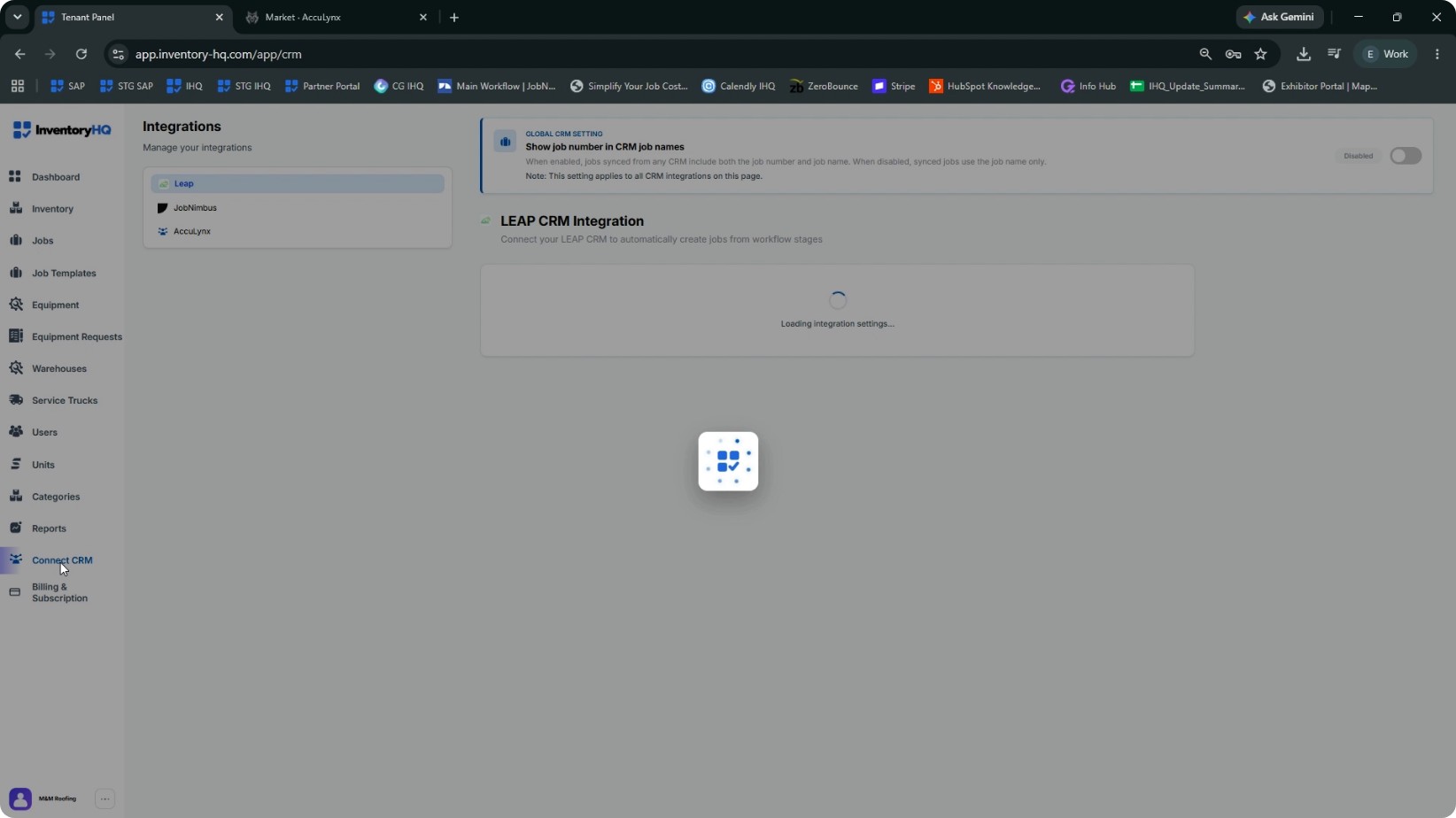
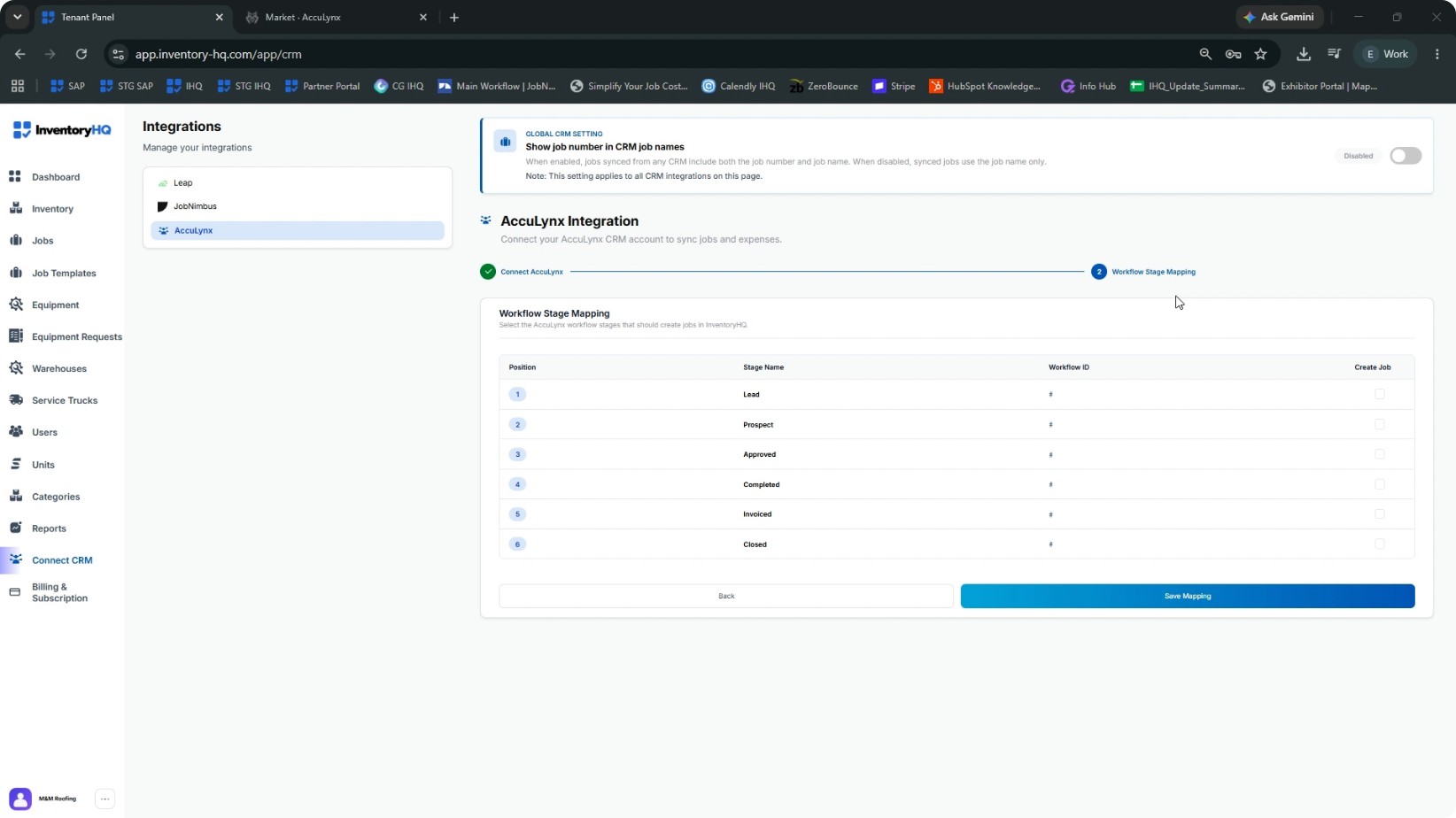
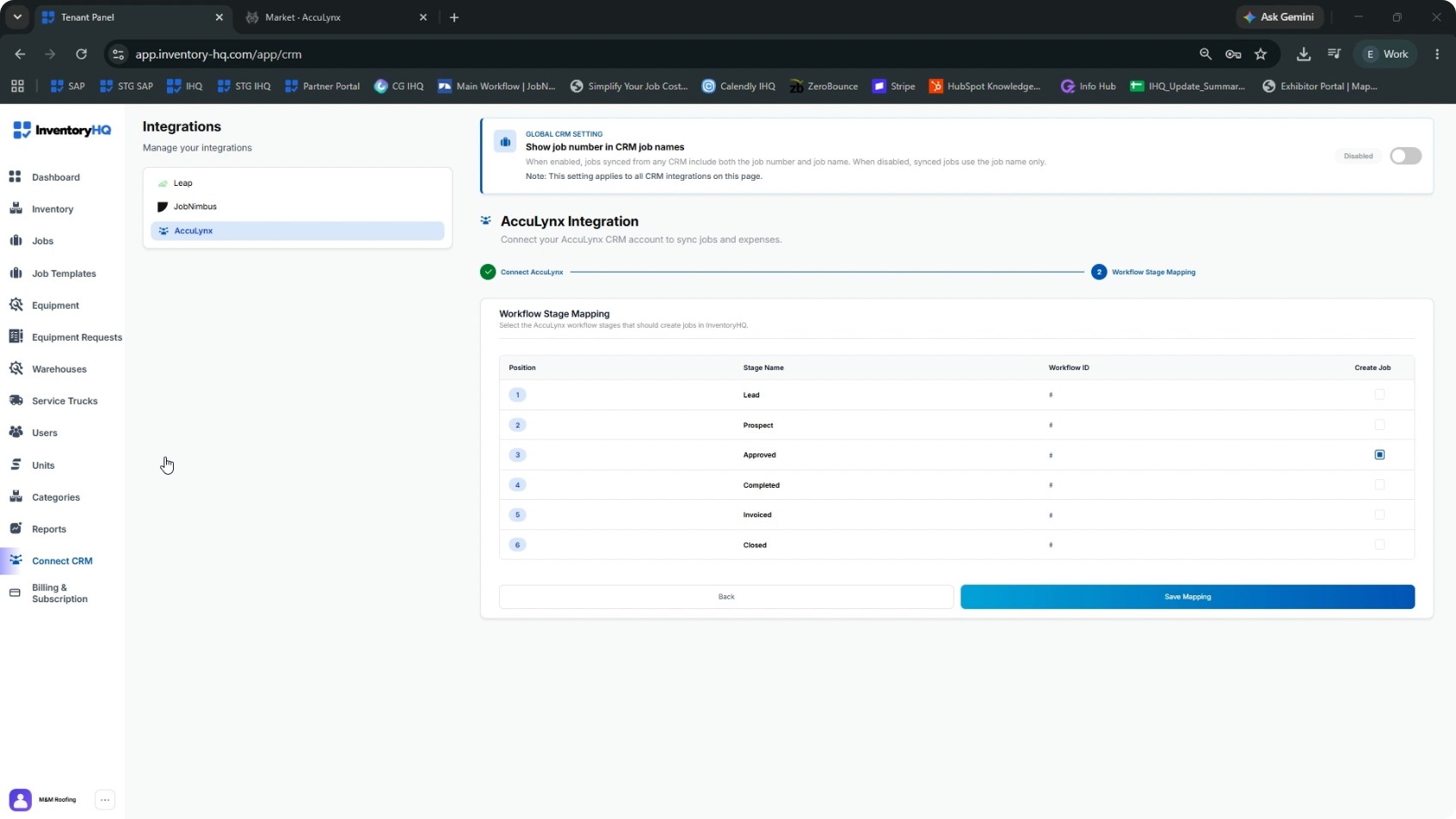
Log in to your InventoryHQ account. From the side panel, click Connect CRM. Find the AccuLynx integration option. Paste the API key you copied from AccuLynx into the key field. Click Connect AccuLynx. On the next screen, you will see your own AccuLynx workflow stages. Select the job stage(s) that you consider as “won” or “awarded” (for example, Approved). This determines when a job will be sent from AccuLynx to InventoryHQ. Click Save Mapping.
From now on, whenever a job in AccuLynx moves into the mapped stage (e.g., Approved), the job information will automatically be sent to your InventoryHQ account. There, you can pull and return materials and track job costing.
- 7
Verify Job Cost Sync Back into AccuLynx
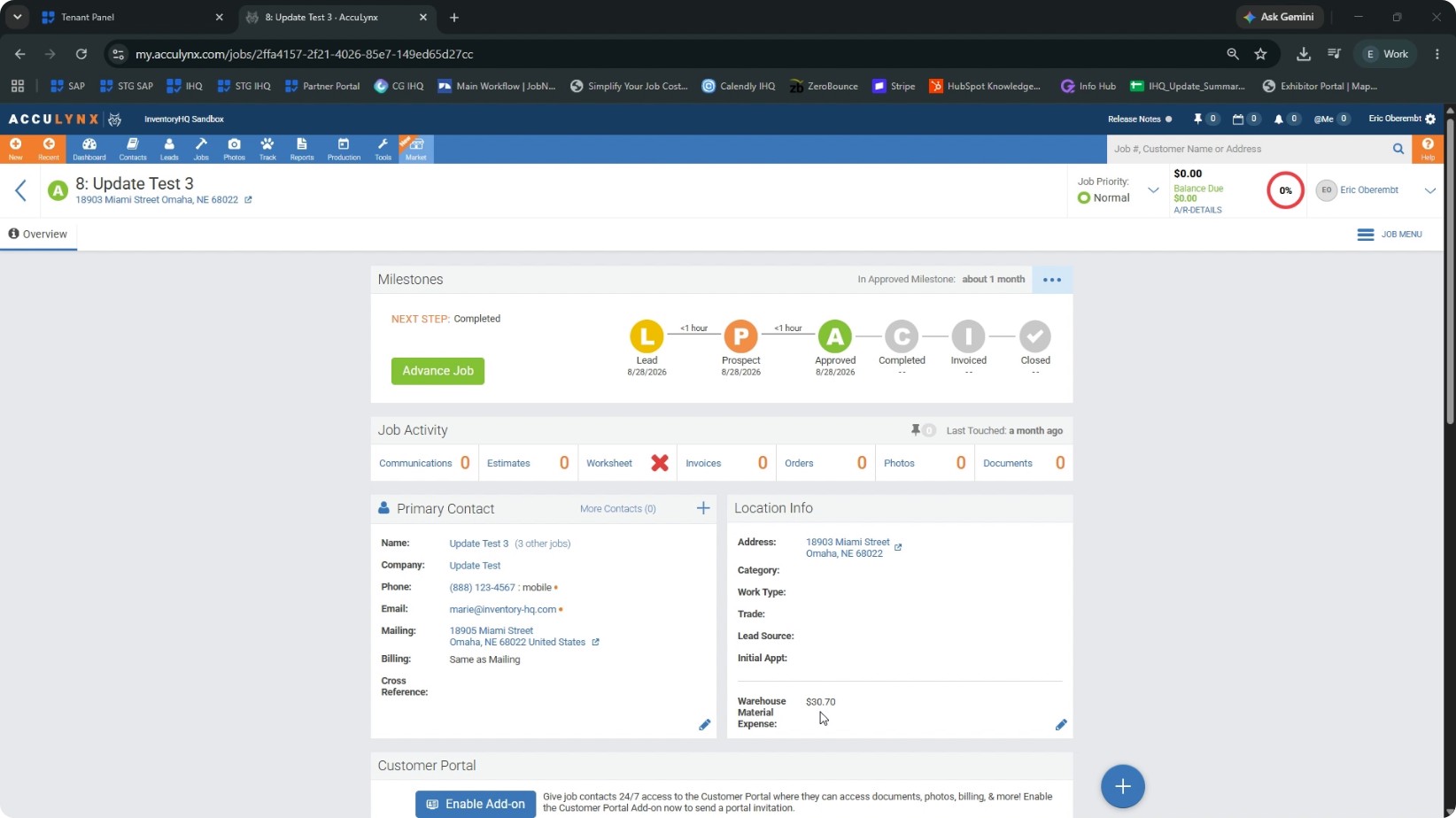
In AccuLynx, go to Jobs to review a job that has been processed through InventoryHQ. Open a job and look at the job overview screen. Confirm that the warehouse material expense field is populated with the material cost sent from InventoryHQ. Your accounting or finance team can now easily locate and use this field for accurate job costing for each specific job.
NEXT TUTORIAL
JobNimbus Integration with InventoryHQ →