
Inventory Monitoring and Reporting in the Dashboard
This document explains how to filter and export low stock alerts, capture a warehouse inventory snapshot, and use the Reports section to generate exportable reports. It covers how to adjust email notifications, apply filters, and export data in Excel or CSV formats.
Step by step
- 1
Access and Filter Low Stock Alerts
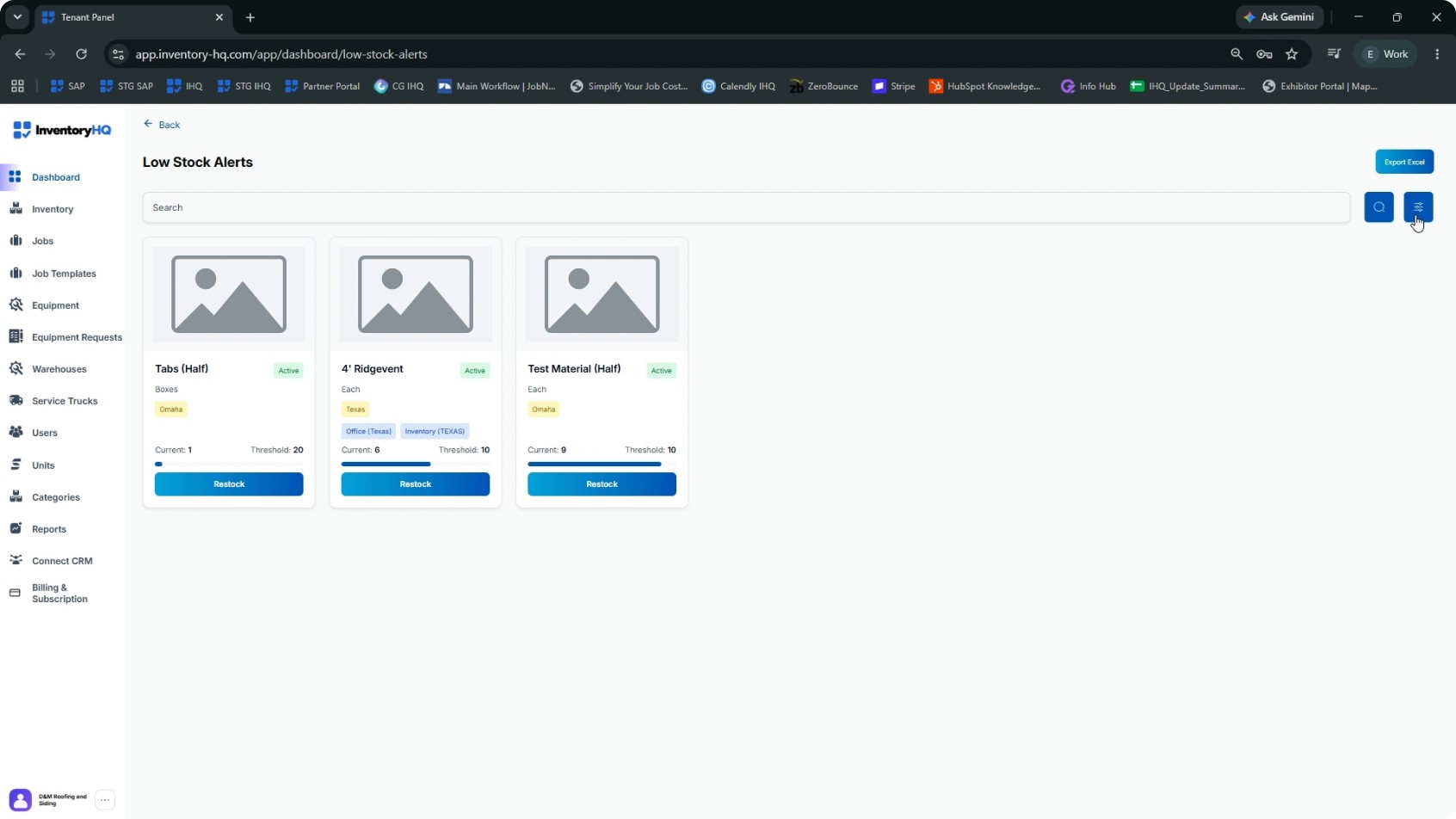
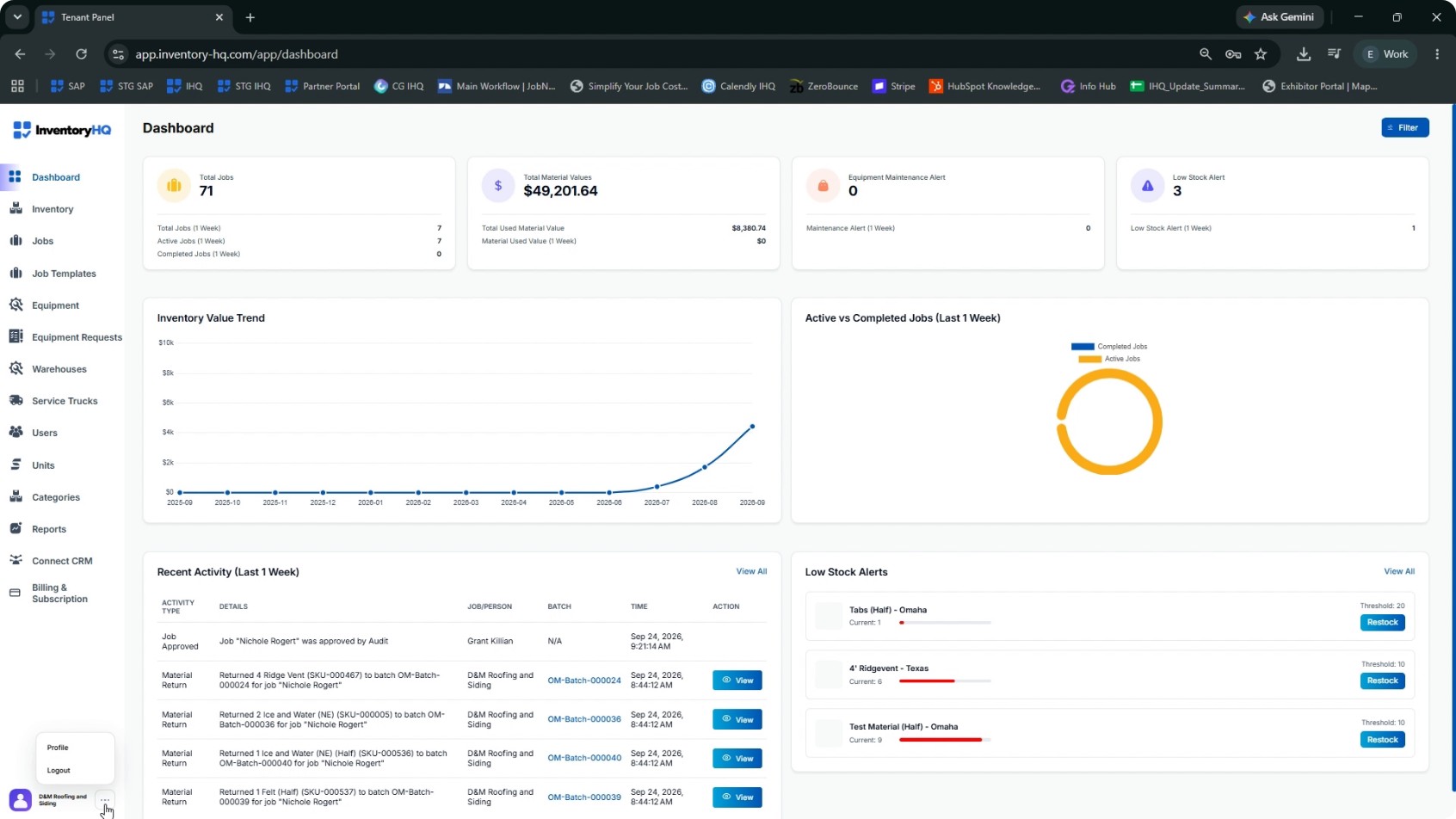
From the main dashboard, locate the Low Stock Alerts panel and click View All. In the Low Stock Alerts view, you will see a search bar and a filter icon. Click the filter icon to open the filter options. You can filter low stock alerts by:
- Unit type
- Warehouse
- Category
Combine these filters as needed, then click Apply Filters to update the list.
- 2
Export Low Stock Alerts to Excel
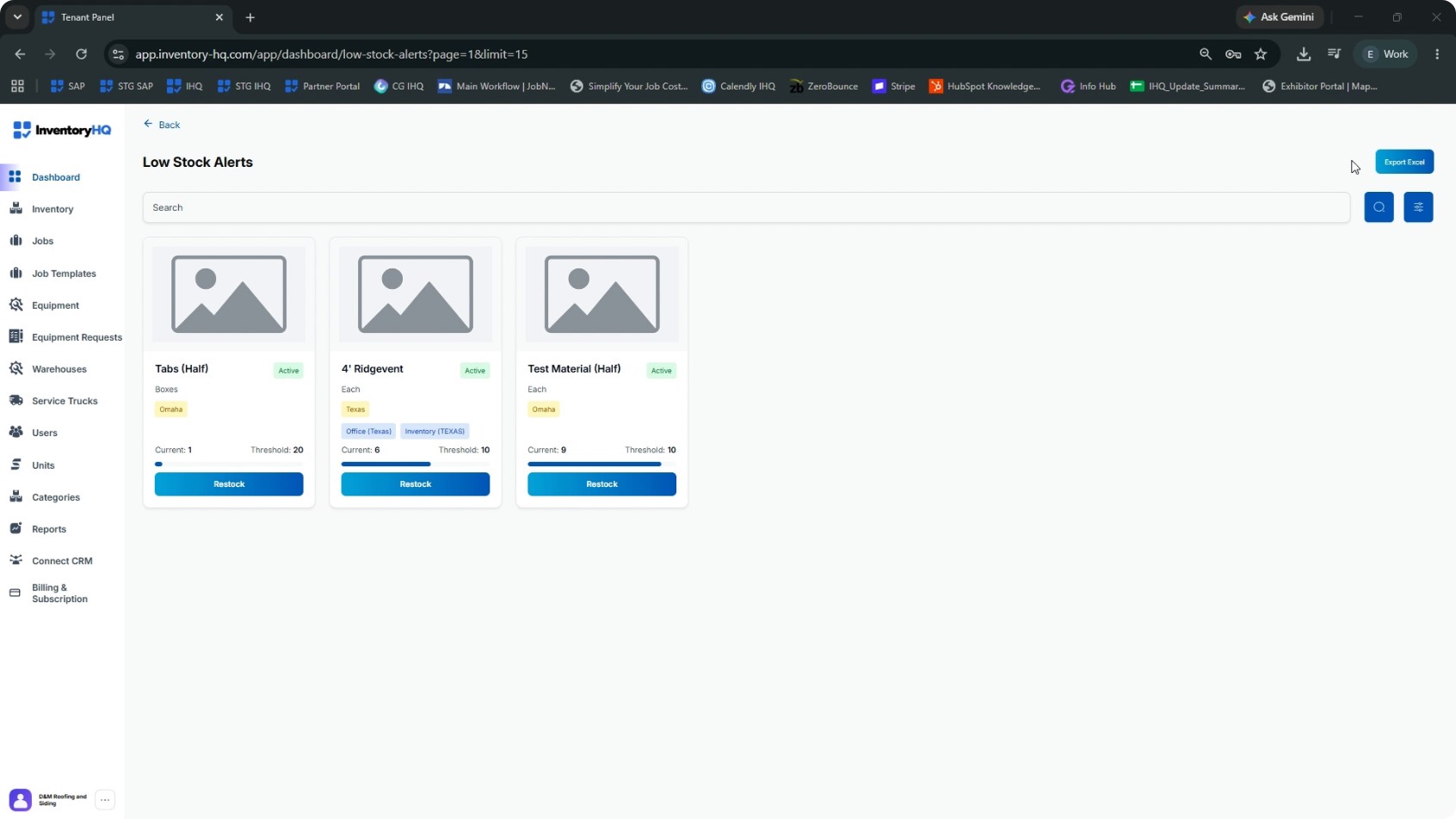
After applying your desired filters in the Low Stock Alerts view, click Export Excel to download a report of the filtered low stock items. Open the exported Excel file to review its contents.
- 3
Review the Low Stock Excel Report
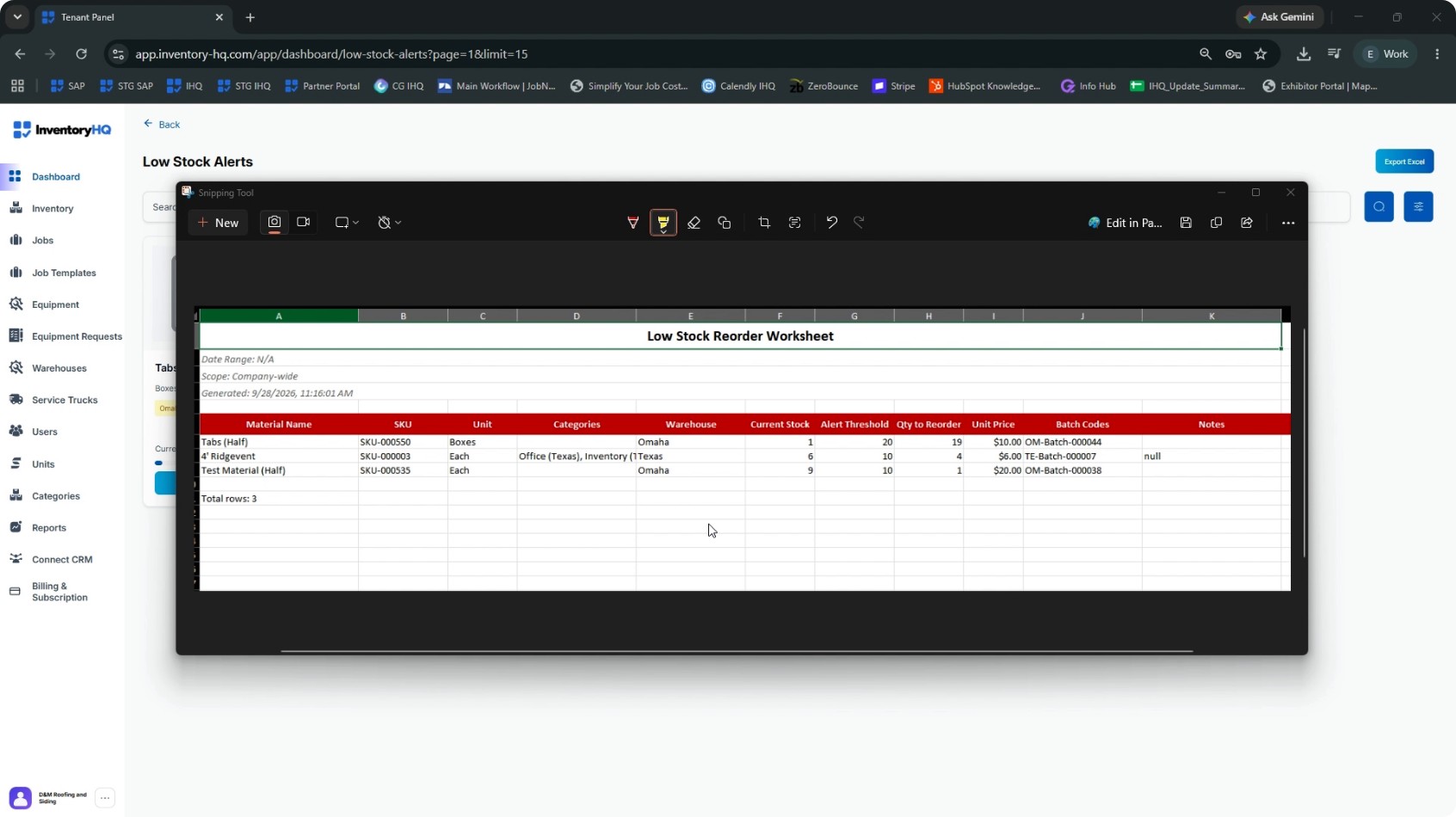
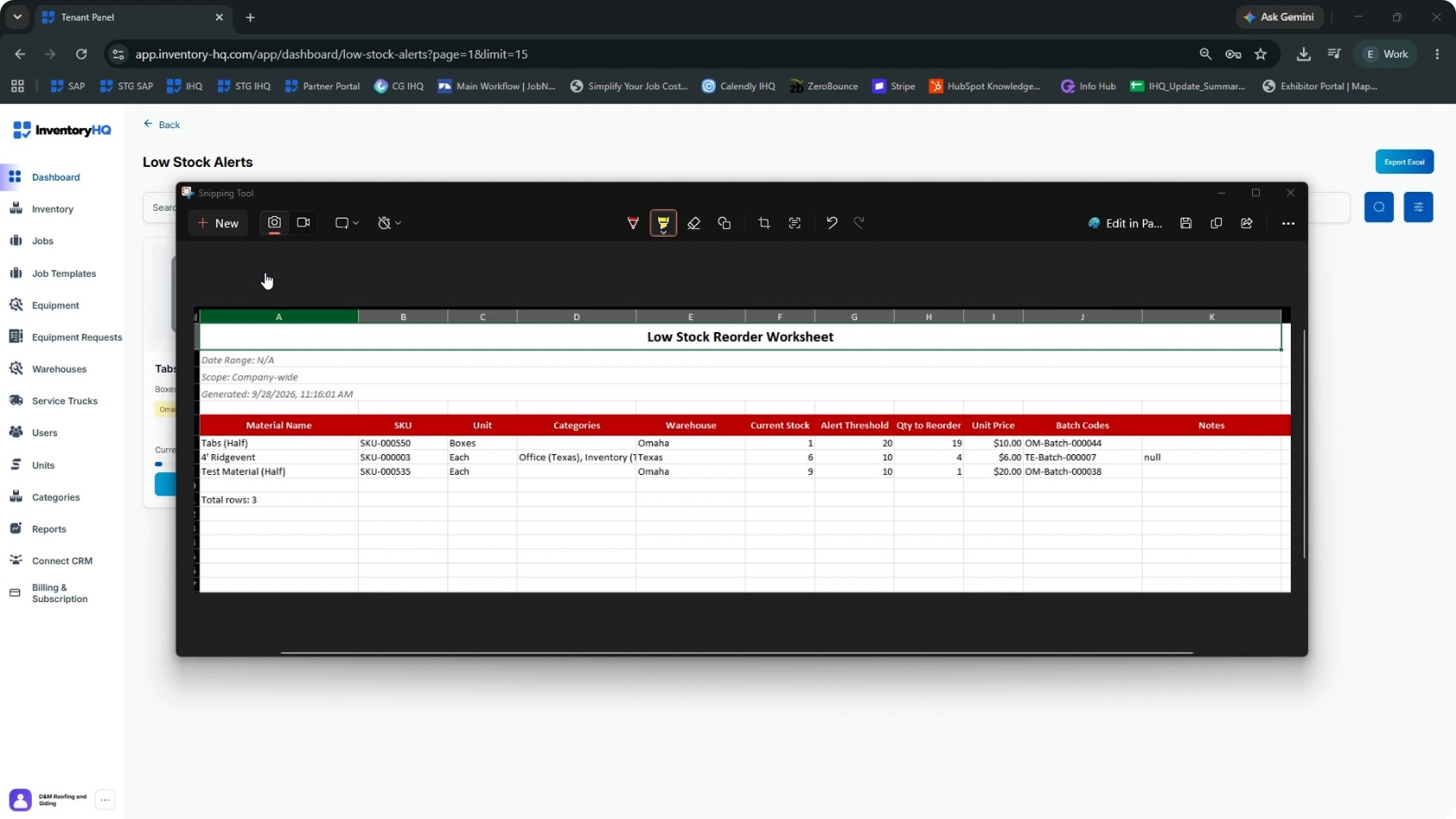
In the Excel report, the header section shows the filter labels you selected (e.g., specific warehouse or “All warehouses”). Each row lists a material that matches your filters. If you selected a specific warehouse, the report only includes that warehouse; if you selected All, it includes all warehouses.
Within the report, the Quantity to Reorder column is auto-calculated as: Threshold − Current Stock. This value can be shared directly with vendors to place replenishment orders.
- 4
Configure Low Stock Email Notifications
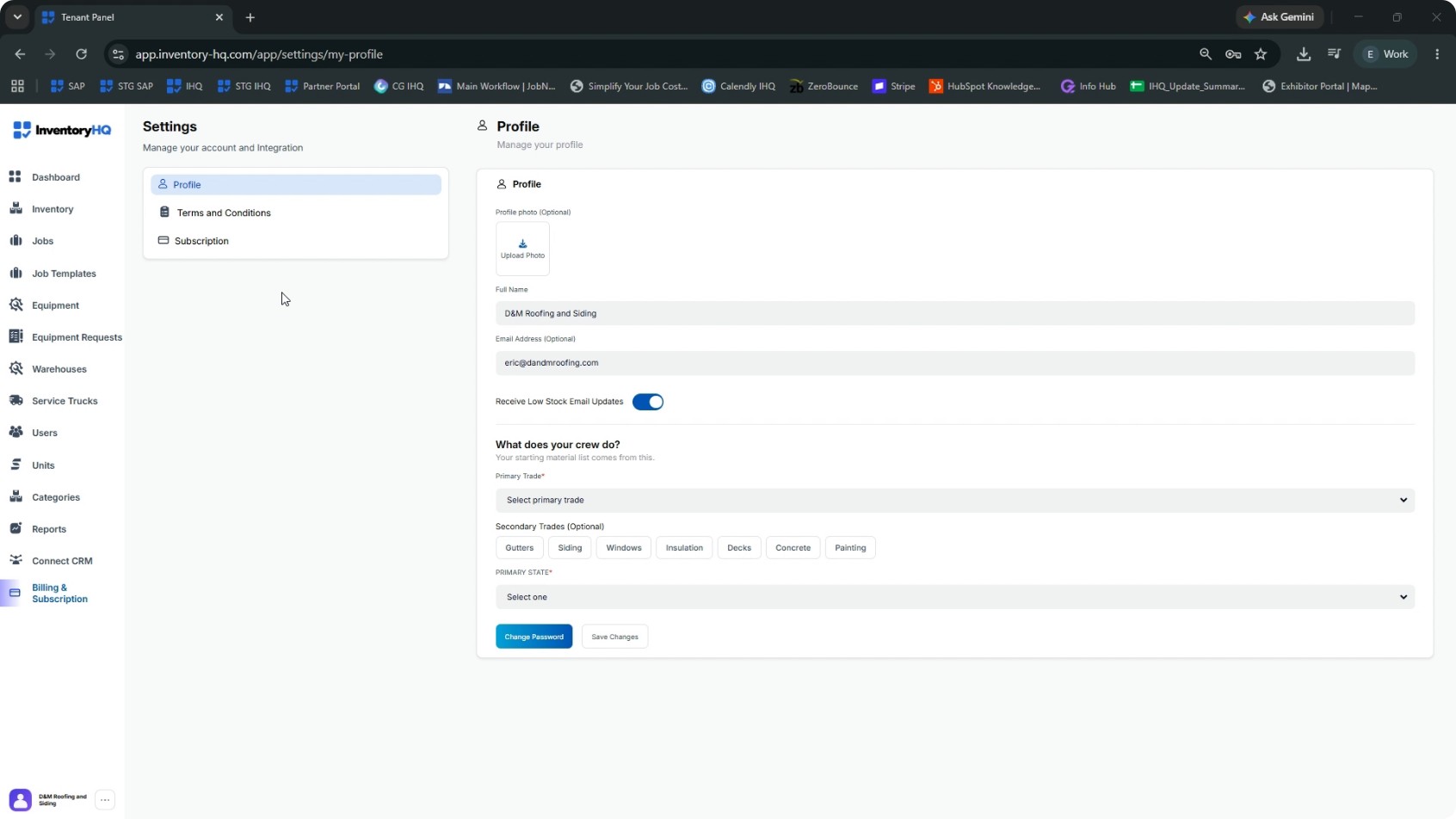
Return to the dashboard. For every low stock alert, your designated recipient (such as a company admin) receives an email notification. If you prefer not to receive these emails, you can turn them off via your profile. From the dashboard, click the three-dot menu (profile options). Select Profile, then find the setting Receive low stock email updates. Toggle this setting off, and click Save changes to stop receiving email alerts while keeping dashboard alerts active.
To turn email notifications back on later, return to the Profile tab and toggle the setting on again.
- 5
Open a Warehouse for an Inventory Snapshot
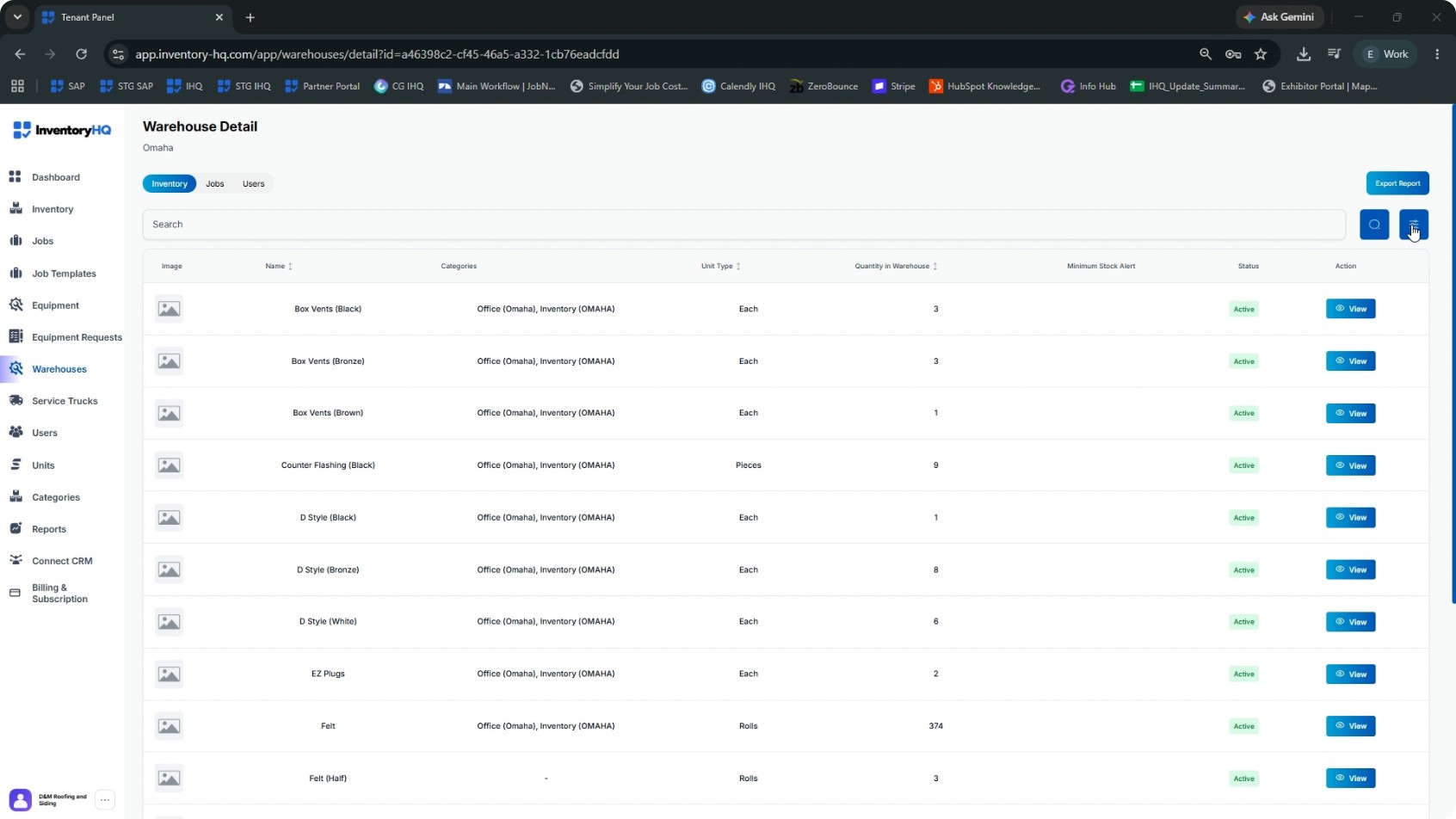
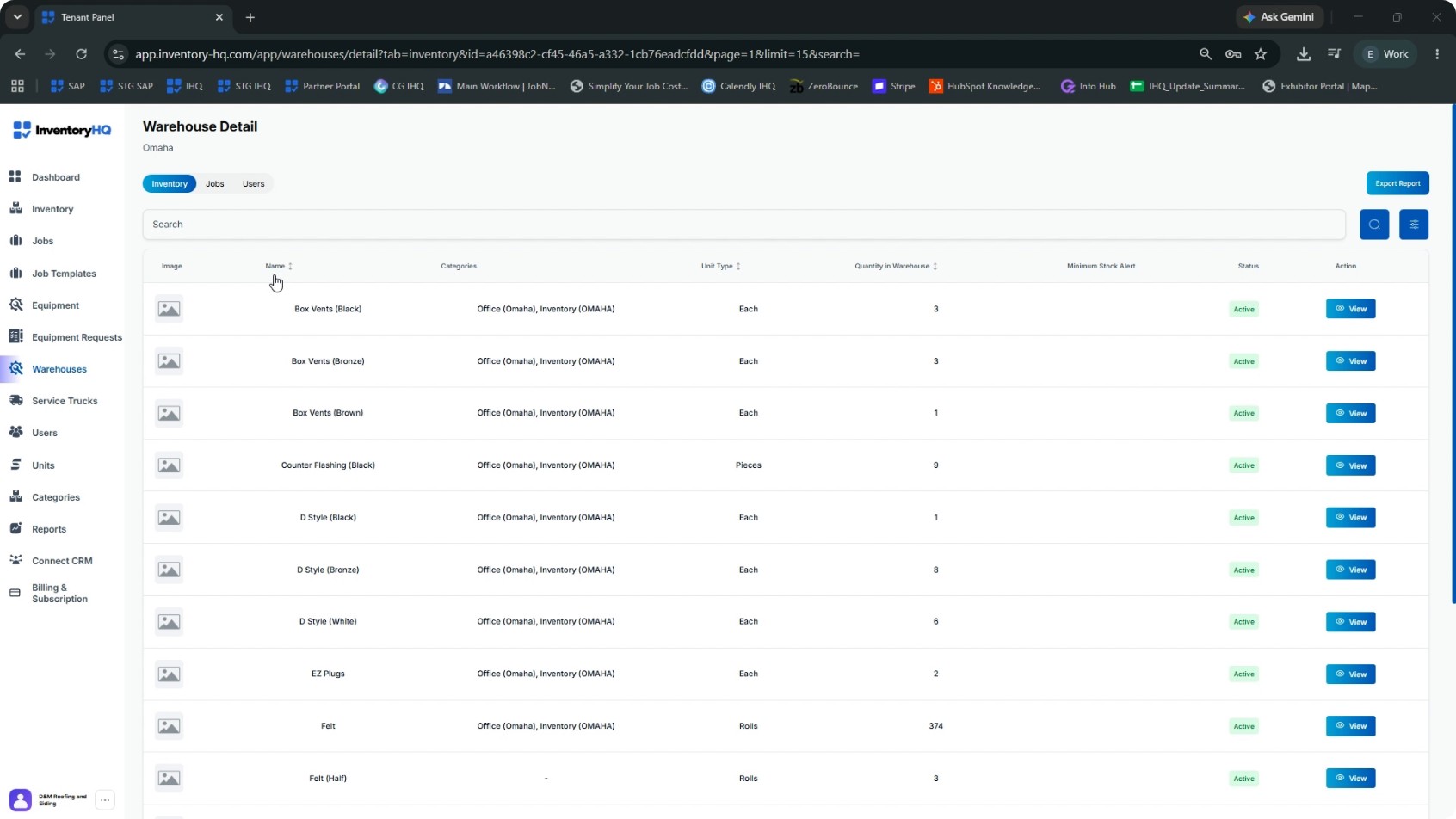
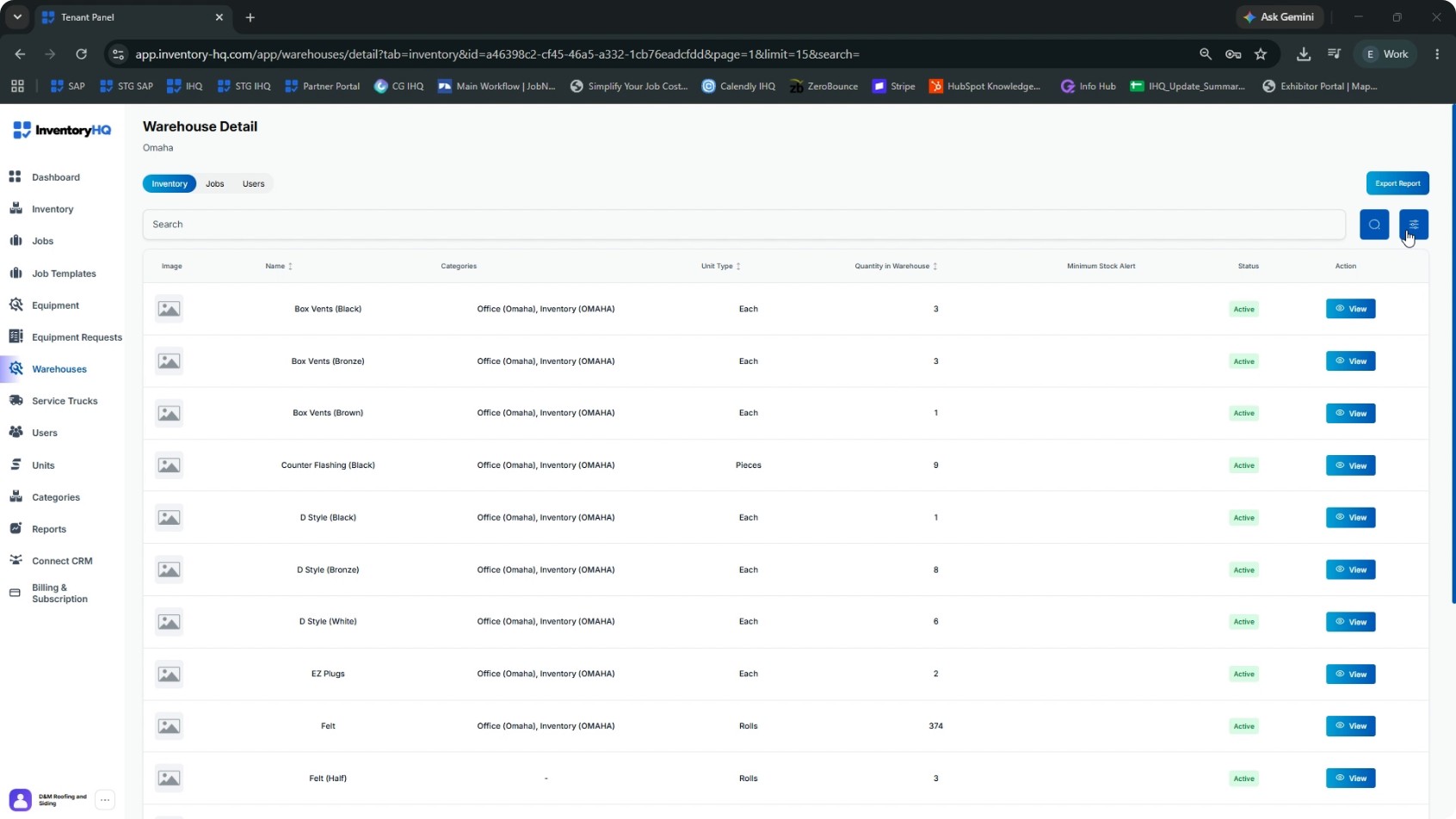
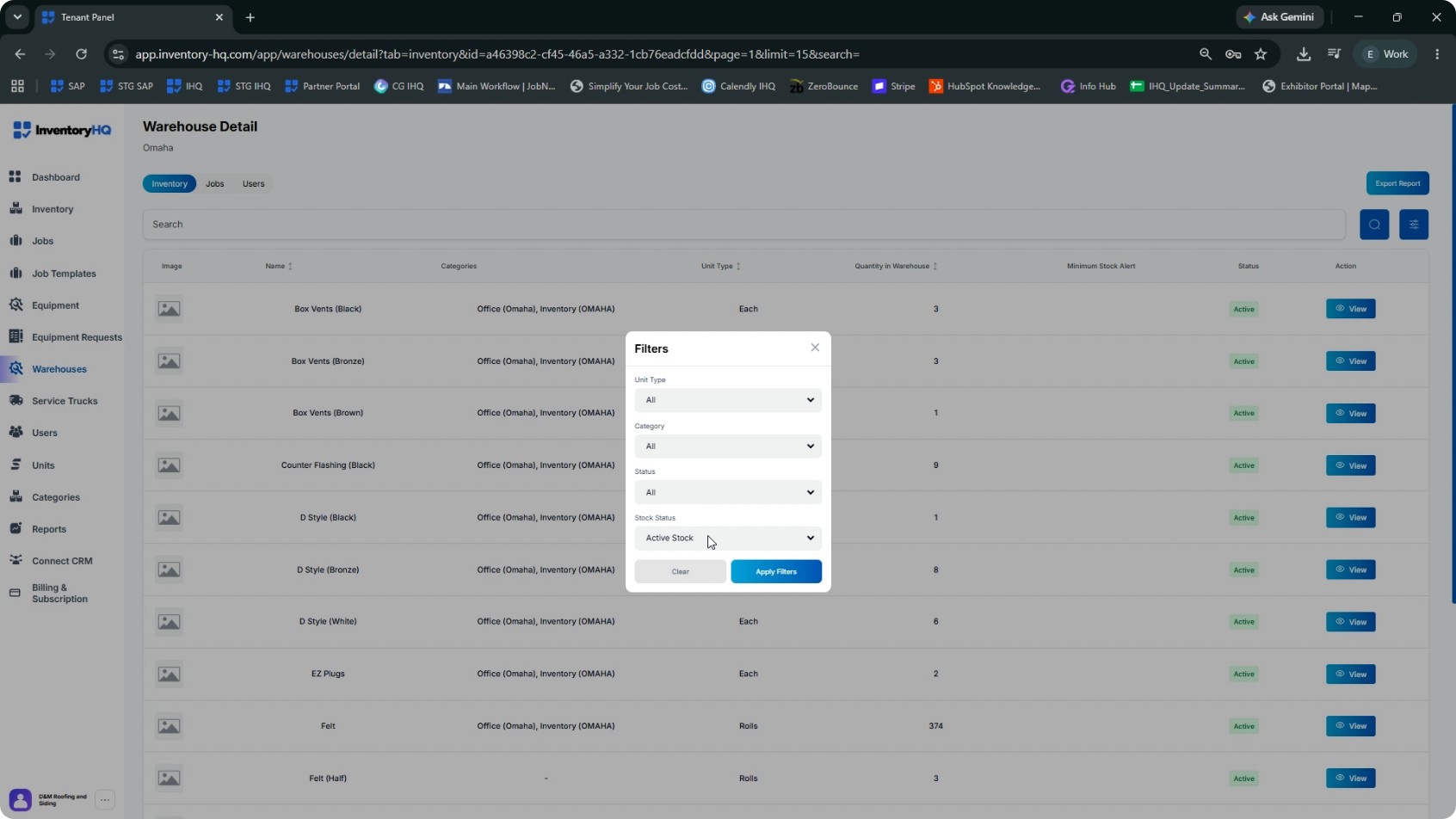
From the dashboard, navigate to Warehouses and select a specific warehouse to view its inventory. In the warehouse view, you will see a search bar and a filter button. Click the filter button to open filtering options. You can filter the warehouse inventory by:
- Unit type
- Category
- Status
- Stock status
Choose Active stock for the stock status and click Apply Filters. This shows all items with real quantity movement. If needed, add a Category filter to narrow the list further.
- 6
Export the Warehouse Inventory Snapshot
In the warehouse view (with filters applied), use the Export option to download a report of the current inventory snapshot. The exported file includes:
- Warehouse name
- Active filters
- Columns for each material and its quantities
Use this report to understand expected on-shelf quantities before conducting physical counts, and for general warehouse inventory analysis.
- 7
Understand Stock Status Filter Options
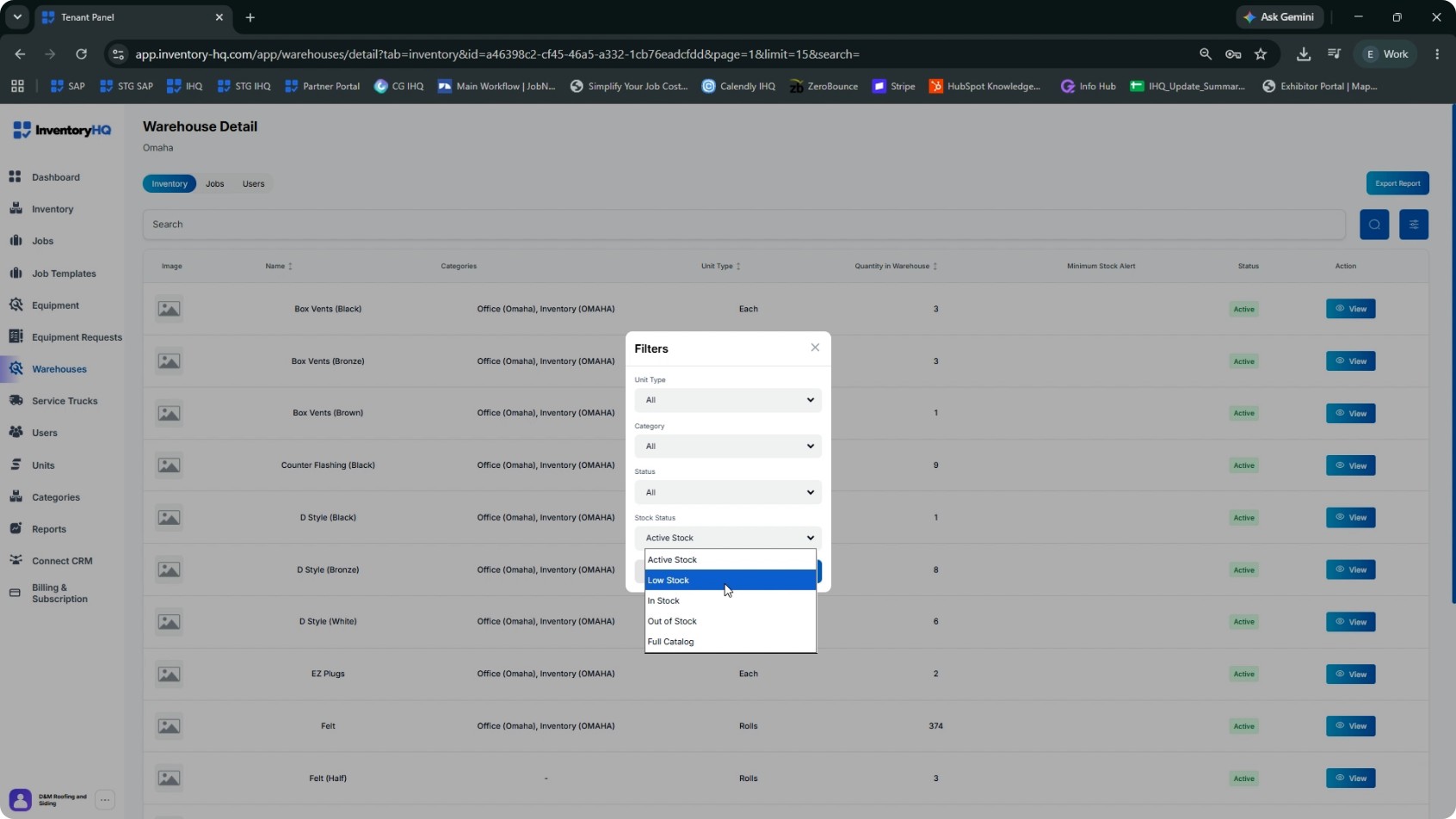
Click the filter icon again in the warehouse view to review Stock status options. The stock status filters work as follows:
- Active stock: All items with real quantity movement (positive or negative).
- In stock: Items with positive stock only.
- Low stock: Items below their defined threshold.
- Out of stock: Items with zero stock.
- Full catalog: Every item in your company catalog, including items that have never been batched at this warehouse.
Use Active stock for day-to-day warehouse management. Use Full catalog when setting up new items at a warehouse. By default, the stock status filter is set to Active stock.
- 8
Access the Reports Section
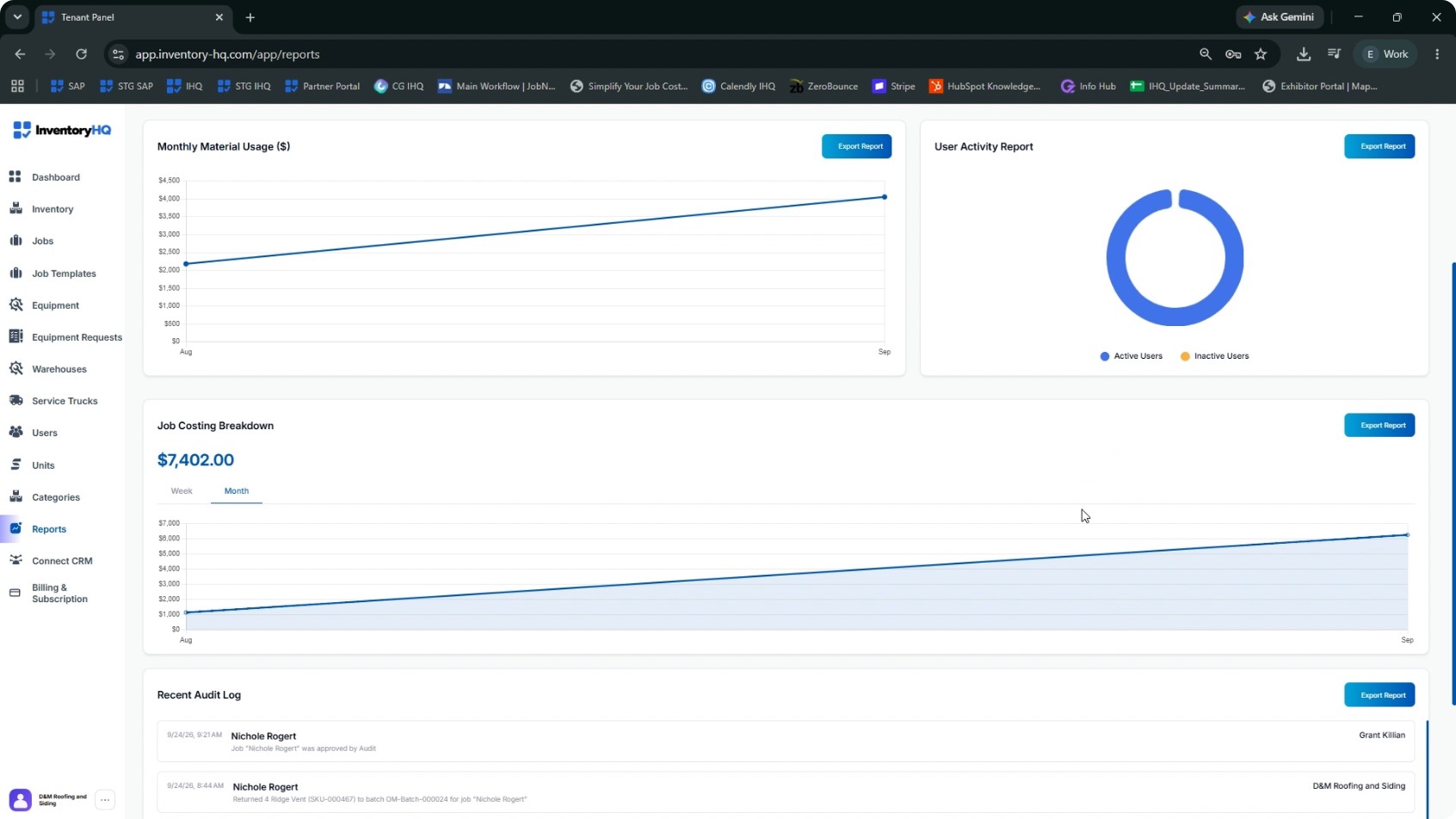
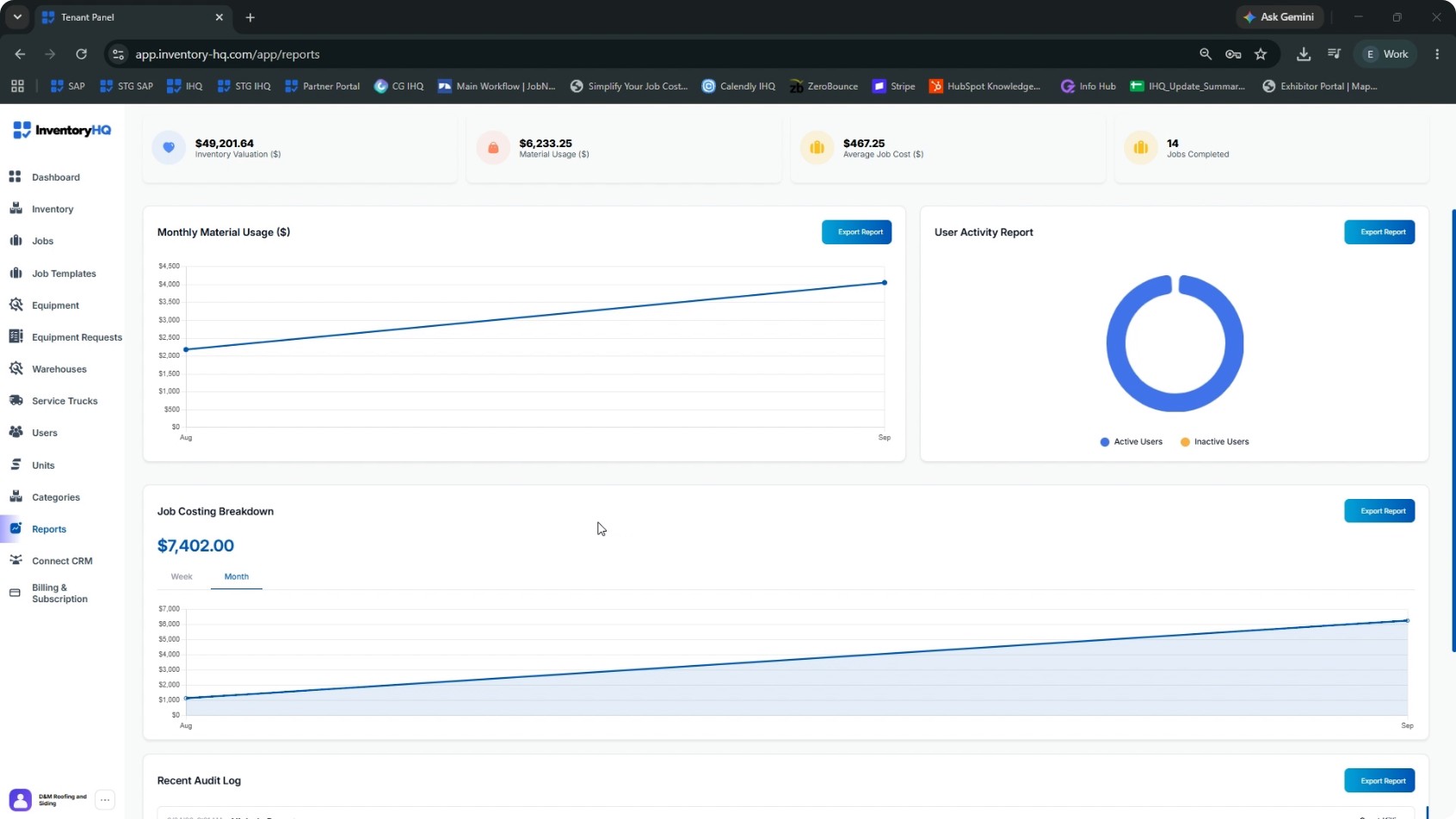
Return to the dashboard, open the side panel, and click Reports. The Reports tab provides four exportable report types:
- Monthly Material Usage
- User Activity Report
- Job Costing Breakdown
- Recent Audit Log
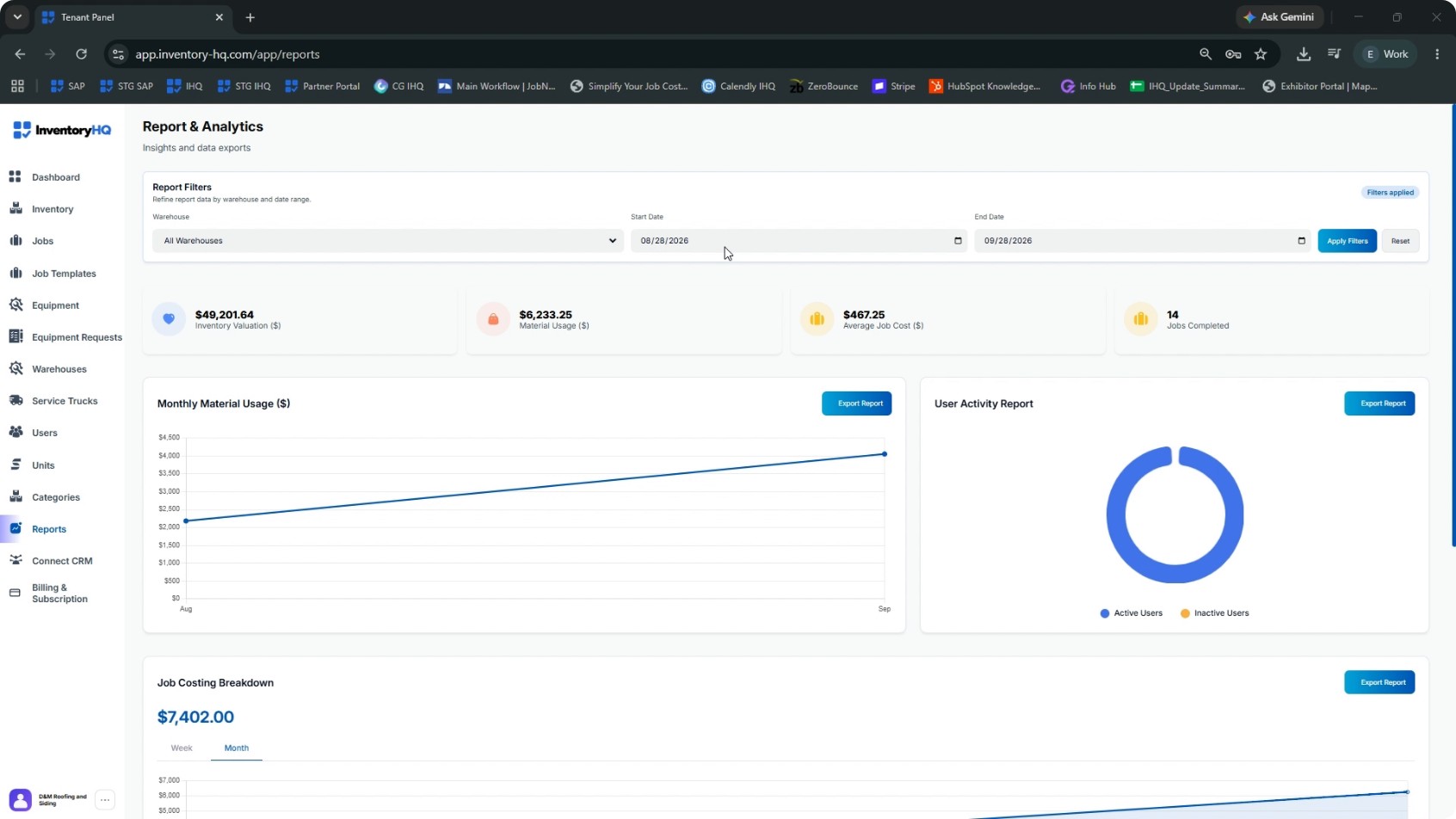
In Monthly Material Usage, you can view usage by month and warehouse. In Job Costing Breakdown, you can view costs by week or month (by period). The User Activity Report shows who pulled which materials and when. The Recent Audit Log lists activities and audits; you can click Export report to review all recorded movements. Every report in this section can be exported as CSV or Excel. At the top of the Reports page, you can edit the report filters.
- 9
Refine and Apply Report Filters
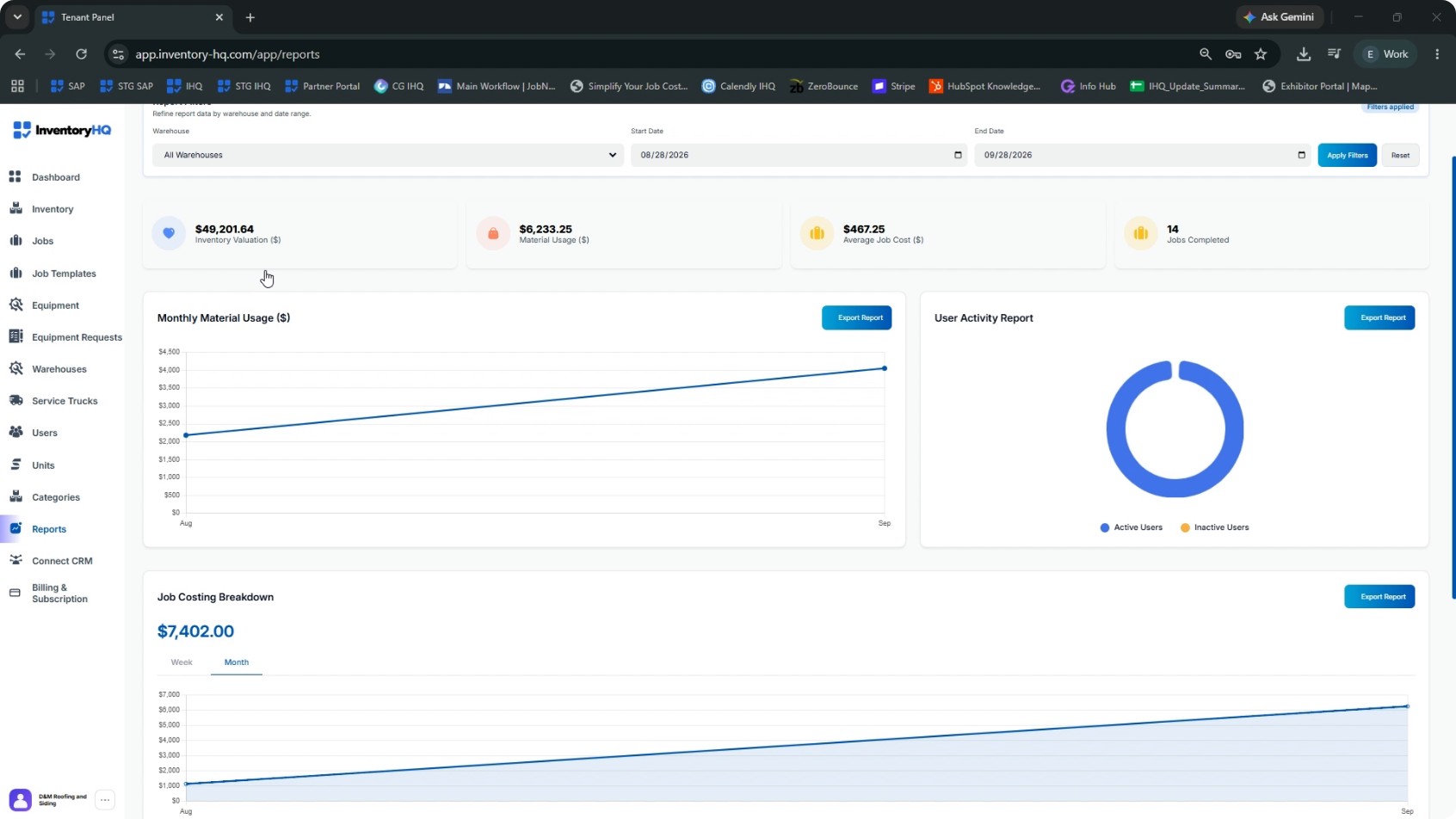
In the Reports tab, refine the data by:
- Selecting a specific warehouse or All warehouses
- Setting a start date and end date
After choosing the appropriate warehouse and date range, click Apply Filters. The data shown in the report below updates to match your selected filters. Use these filters and export options to generate precise, time-bound reports for inventory usage, user activity, job costing, and audit tracking.
NEXT TUTORIAL
Managing Service Trucks in Inventory HQ →